Environment Providers
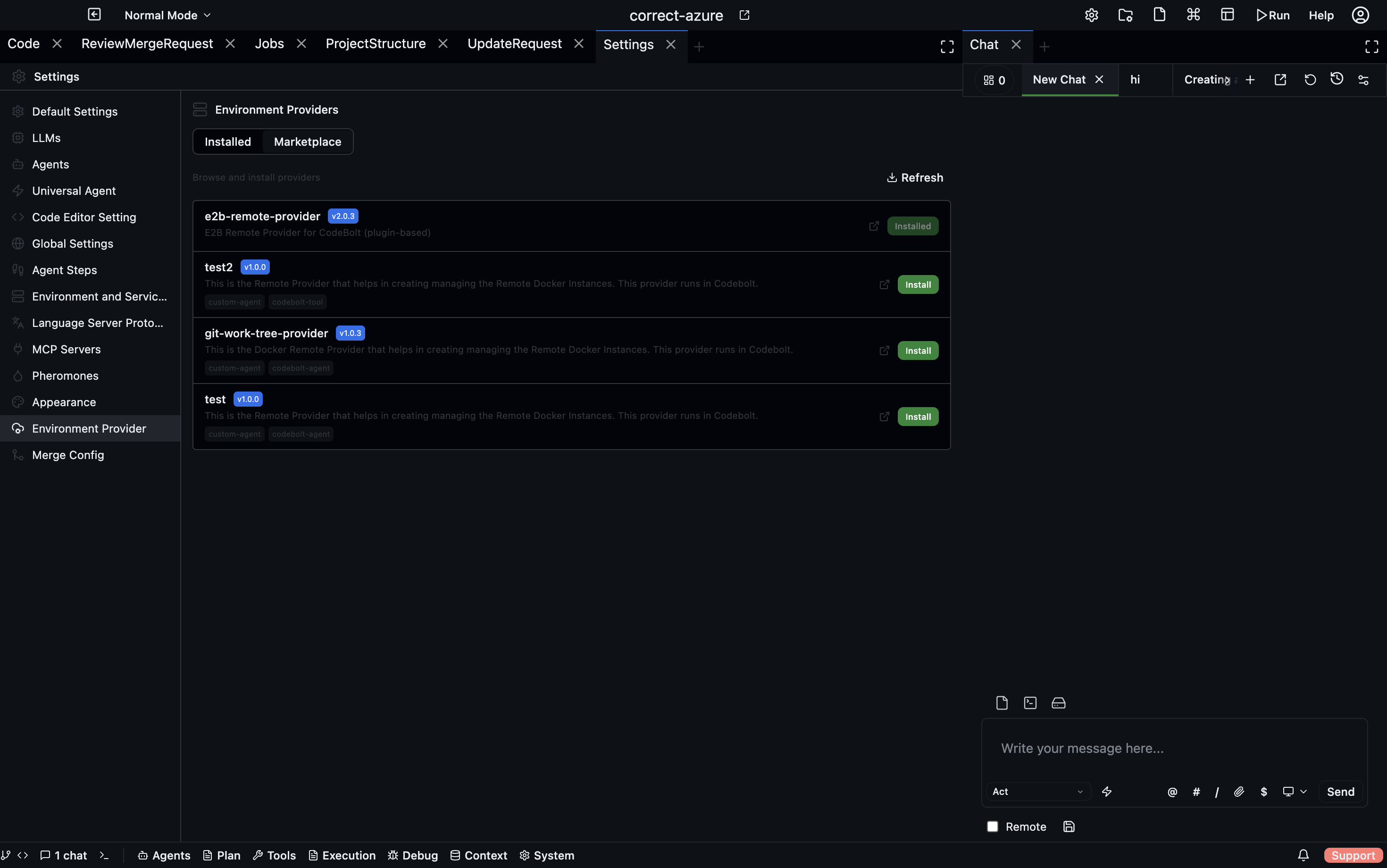
An environment provider is what Codebolt uses to create and manage a remote execution environment. When you choose a non-local environment type, Codebolt delegates environment setup, startup, and teardown to the appropriate provider.
How providers work
When you run an agent with a provider-backed environment:
- Codebolt instructs the provider to create or attach to an environment
- The provider starts the Codebolt runtime inside that environment
- The remote runtime connects back to Codebolt over WebSocket
- The agent loop runs inside the remote environment
- Codebolt receives all events, tool outputs, and logs locally
Your local Codebolt server remains the control plane throughout — the provider manages the remote side.
Available providers
Local
The default. The agent runs directly on your machine using your installed tools, shell, and environment. No provider configuration required.
Use when: developing and testing agents locally.
Remote SSH server
Runs the agent on a remote machine you control over SSH.
Configuration:
| Field | Description |
|---|---|
| Host | IP address or hostname of the remote machine |
| Port | SSH port (default: 22) |
| User | SSH username |
| Auth | Path to SSH private key or password |
| Remote working directory | Absolute path on the remote machine |
Codebolt streams command output from the remote host back to your local Terminal panel in real time.
Use when: you need to run agents in a staging server, a cloud VM, or any machine you can reach over SSH.
Docker
Runs the agent inside a Docker container. The container can be on your local machine or a remote Docker host.
Configuration:
| Field | Description |
|---|---|
| Image | Docker image to use (e.g., node:20-alpine) |
| Docker host | Leave blank for local Docker; set to a remote Docker socket for remote hosts |
| Volumes | Additional volume mounts (the project directory is mounted automatically) |
| Port mappings | Ports to expose from the container |
| Environment variables | Added on top of the environment's variable set |
A fresh container is created for each agent run and torn down when the run completes (unless you configure persistence).
Use when: you need full dependency isolation, a specific OS environment, or reproducible builds.
E2B
E2B provides cloud sandboxes — lightweight, fast-starting VMs for running code safely.
Configuration:
| Field | Description |
|---|---|
| API key | Your E2B API key |
| Sandbox template | The E2B template to use (defaults to the Codebolt base template) |
| Region | Preferred region for sandbox creation |
| Timeout | Maximum sandbox lifetime in seconds |
E2B sandboxes start in seconds. Codebolt persists the sandbox ID across reconnects, so a running sandbox survives a Codebolt restart.
Use when: you need ephemeral isolated environments that start quickly, or want to run many parallel agent tasks without managing infrastructure.
Daytona
Daytona provides managed cloud development workspaces with full persistence and team sharing.
Configuration:
| Field | Description |
|---|---|
| API key | Your Daytona API key |
| Server URL | Your Daytona server endpoint |
| Workspace | Workspace name to create or attach to |
| Project | The project inside the workspace |
Daytona workspaces persist between runs, making them suitable for long-running or collaborative agent tasks.
Use when: you need persistent remote environments shared across a team, or long-running environments that accumulate state across multiple agent sessions.
Git Worktree
Creates a separate Git worktree of your project in a temporary directory. The agent runs in the worktree, keeping changes isolated from your main working tree.
Configuration:
| Field | Description |
|---|---|
| Branch | Branch to check out in the worktree (created if it doesn't exist) |
| Base path | Where to create the worktree directory (defaults to a system temp path) |
When the agent run completes, the worktree can be merged back or discarded. No network connection required — this is a purely local provider.
Use when: you want to run experiments or refactoring agents on a separate branch without affecting your current working tree, or when running two agents on the same project in parallel.
Switching providers
Environments are configured per-project. To change which provider an environment uses:
- Open Execution → Environment
- Select the environment
- Change the Type field
- Fill in the new provider's configuration
- Save
The next agent run will use the new provider.
Provider status
The active environment's provider connection status appears in the Plugin Debug panel (Debug Tools → Plugin Debug). If a provider shows disconnected or error, check its error message there before re-running an agent.
Building a custom provider
If you need an execution environment not covered by the built-in providers, you can build a custom provider using the @codebolt/provider base package. See Multi-Environment Orchestration in the Build on Codebolt section.