Chat Overview
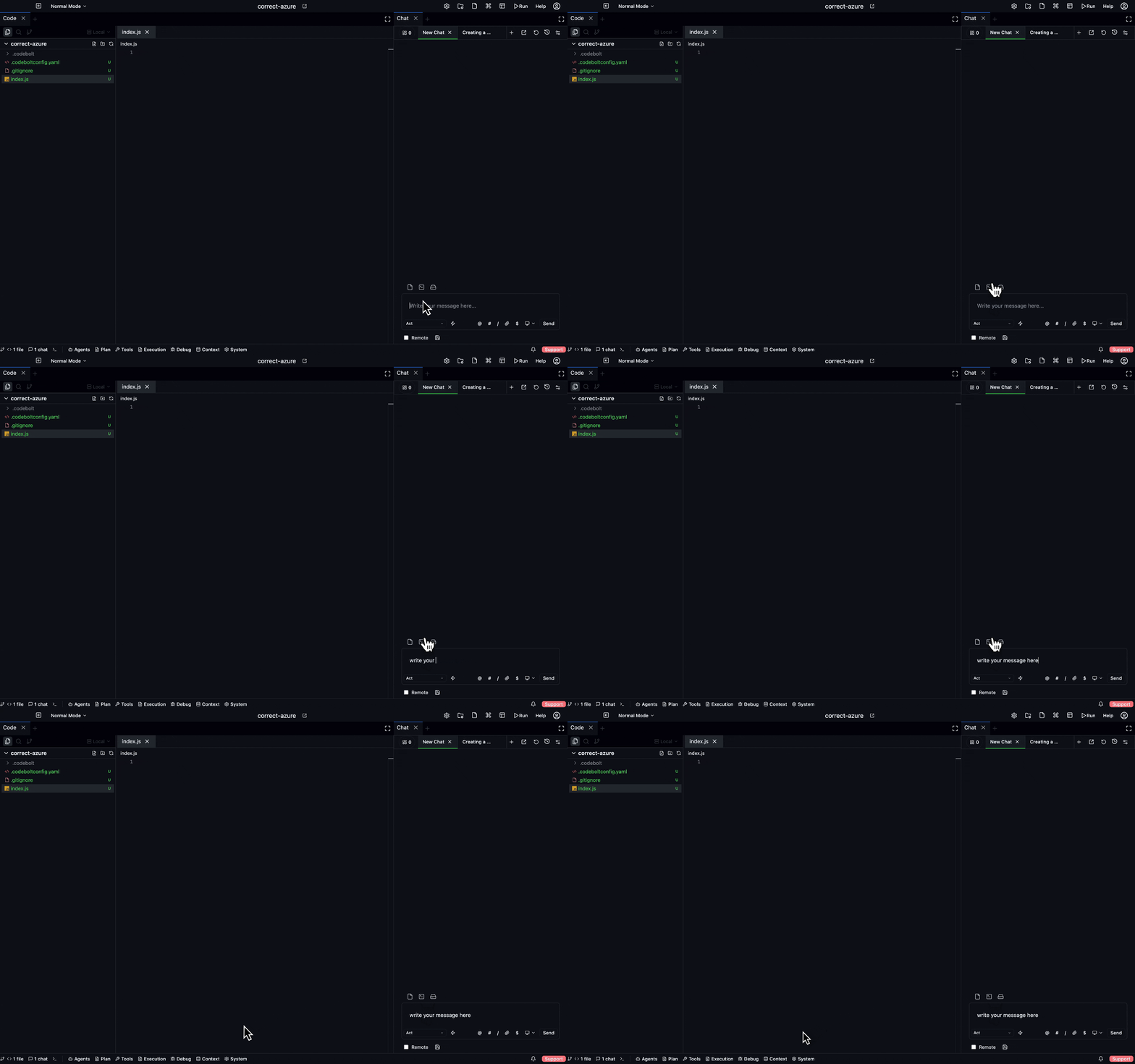
The chat panel is the primary way most people interact with Codebolt. You pick an agent, type a message, watch it work, review the result. Everything else in Codebolt — marketplace, flows, custom agents, multi-agent orchestration — is either a variation on this loop or infrastructure that makes it better.
Anatomy of the chat panel
┌──────────────────────────────────────────────┐
│ [tab] [tab] [+]                              │  ← tabs (multiple conversations)
├──────────────────────────────────────────────┤
│ agent: generalist ▾    model: claude-sonnet-4│  ← agent + model picker
├──────────────────────────────────────────────┤
│                                              │
│   user: rename getUser to fetchUser         │
│                                              │
│   ↳ reading src/auth/session.ts              │  ← tool calls inline
│   ↳ reading src/api/users.ts                 │
│   ↳ writing src/auth/session.ts              │
│                                              │
│   assistant: Done. 3 files changed.          │
│   [diff preview]                             │
│                                              │
├──────────────────────────────────────────────┤
│ [checkpoint: 2s ago]  [rollback]  [details]  │  ← checkpoint controls
├──────────────────────────────────────────────┤
│ > type a message...                    [send]│  ← composer
└──────────────────────────────────────────────┘
Main areas:
- Tabs — each tab is a thread with its own history, agent, and model.
- Agent + model pickers — change either at any point; subsequent turns use the new values.
- Message stream — user and assistant messages, with tool calls rendered inline.
- Checkpoint controls — every turn creates a checkpoint you can roll back to. See Checkpoints.
- Composer — where you type. Supports @-mentions, slash commands, file drops.
What a turn looks like
When you send a message:
- The turn is added to the thread and persisted.
- The bound agent wakes up.
- Context is assembled (recent turns, active rules, relevant memory, open files).
- The agent calls the LLM with tools available.
- If the LLM returns tool calls, they run (each one visible in the stream).
- Guardrails check every tool call before it executes.
- The agent decides whether to continue or finish; loop until done.
- A final message is streamed back.
- A checkpoint is recorded at the end.
All of this is traced — you can dig into any turn to see exactly what happened. See Agent Debug.
Tabs
Each chat tab is a separate thread. Tabs are useful for:
- Parallel tasks — working on two things at once, one per tab.
- Different agents — a reviewer tab and a coder tab on the same project.
- Experimental exploration — spin up a throwaway tab to try something without polluting your main thread.
Tabs persist across restarts. Close a tab deliberately if you want it gone.
See Tabs and history.
The context window
The chat doesn't dump your entire conversation into the LLM every turn. The context assembler picks what goes in, based on:
- Recent turns (most recent N).
- Persistent memory relevant to the current task.
- Open files in the editor.
- Codemap entries for files you've mentioned.
- @-mentions you included explicitly.
- Project-wide context rules.
When the context budget is tight, older turns are compressed automatically. You'll see a compression marker in the thread when this happens.
Agent and model picker
Agent — which agent handles this thread. Can be any installed agent: built-ins, custom, marketplace. The same project can have different tabs bound to different agents.
Model — which LLM the agent uses. Defaults to the agent's default_model, but you can override per tab. The model picker respects the agent's constraints — if the agent is configured for a specific model family, you can't switch to an incompatible one.
Changing either mid-thread is fine. The next turn uses the new values; previous turns are unchanged.
See Model selection.
Checkpoints
Every chat turn that changes files creates a checkpoint. You can:
- Rollback to a checkpoint — revert the files to that point without touching real git.
- Replay from a checkpoint — see a read-only snapshot of the FS at that point.
- Branch from a checkpoint — start a new thread with that FS state as the starting point.
Checkpoints are cheap. Don't be afraid to let the agent try things; you can always rewind.
Inline edit (Ctrl+K)
For single-file edits where you don't want to open a chat, select code and press Ctrl+K. A small inline prompt opens, you type the edit, and it applies directly. No chat thread created. Still checkpointed.
Slash commands
In the composer, / opens a command menu:
/help— command reference/clear— clear the current thread/model <name>— switch models/agent <name>— switch agents/checkpoint— create an explicit checkpoint/rollback— rollback to the last checkpoint/compact— manually compact the conversation/explain— explain what the agent just did/retry— re-run the last turn with different randomness
Custom agents and extensions can add their own slash commands.
Keyboard shortcuts
Most common:
| Shortcut | Action |
|---|---|
| Ctrl/Cmd+Enter | Send message |
| Ctrl/Cmd+K | Inline edit |
| Ctrl/Cmd+N | New chat tab |
| Ctrl/Cmd+W | Close chat tab |
| Ctrl/Cmd+Tab | Next tab |
| Ctrl/Cmd+, | Settings |
| Esc | Stop the current agent turn |
See the full list in Settings → Keyboard Shortcuts.