App & Project Settings
Codebolt has two layers of settings: App Settings that apply globally to your Codebolt installation, and Project Settings that apply only to the current project.
Open App Settings: System Settings dropdown → App Settings
Open Project Settings: System Settings dropdown → Settings (or the gear icon in the top navbar)
App Settings
App Settings control behaviour across all projects.
Default Settings (LLM)
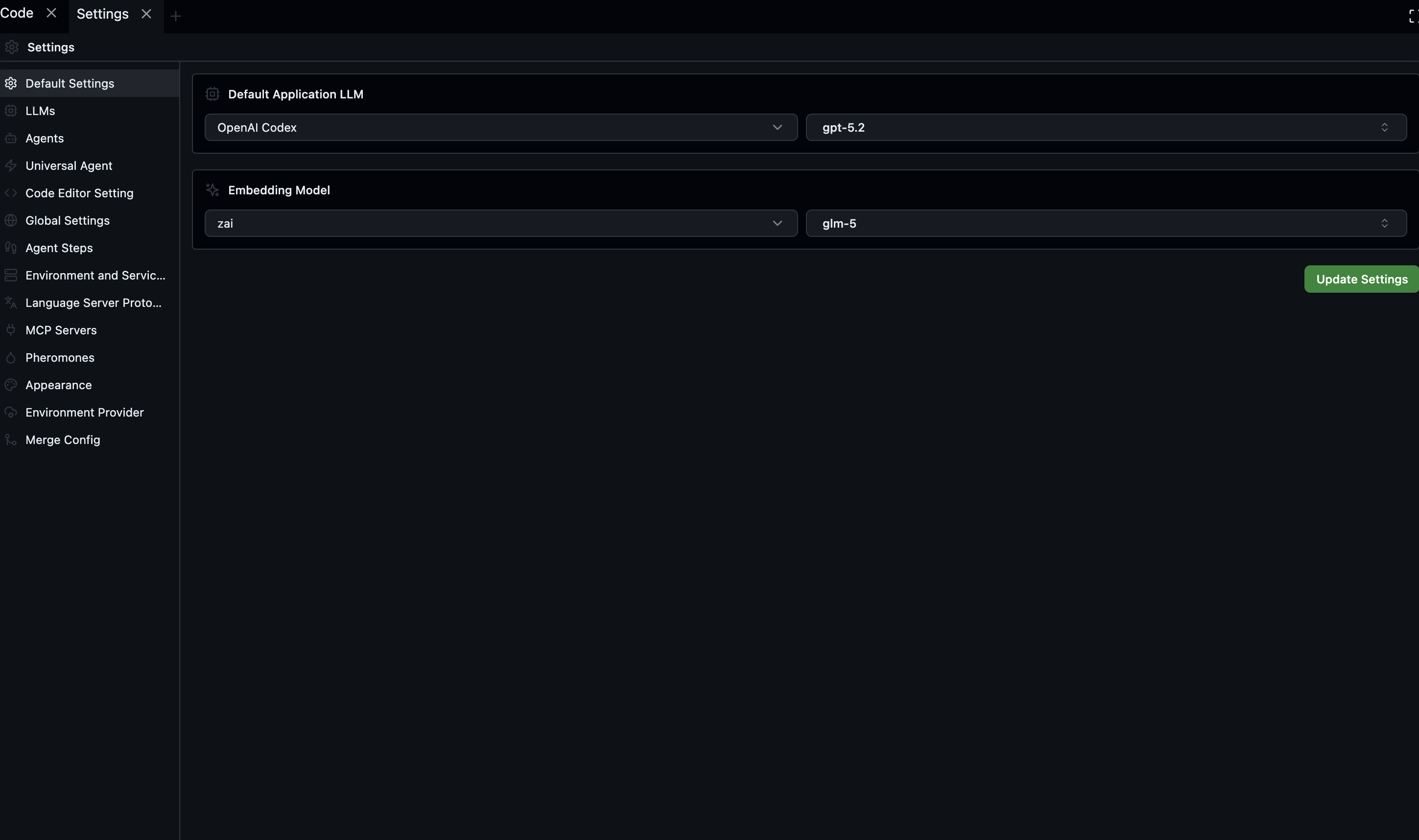
Configure the default Application LLM and Embedding Model used across all projects.
| Setting | Description |
|---|---|
| Default LLM provider | The provider used when a project has no override |
| Default model | The model used when no agent or project specifies one |
| Auto-update | Automatically install Codebolt updates (on/off) |
| Telemetry | Send anonymous usage data to Codebolt (on/off) |
| Startup project | Which project to open on launch |
Terminal
| Setting | Description |
|---|---|
| Default shell | bash, zsh, fish, PowerShell, cmd |
| Font size | Terminal font size in pixels |
| Font family | Monospace font for the terminal |
| Scrollback buffer | Number of lines to keep in terminal history |
| Cursor style | Block, underline, or bar |
Editor
| Setting | Description |
|---|---|
| Tab size | Spaces per indentation level |
| Insert spaces | Use spaces instead of tabs |
| Word wrap | Wrap long lines (on/off) |
| Minimap | Show minimap in the right margin (on/off) |
| Format on save | Automatically format files on save |
| Default formatter | Which formatter to use (Prettier, language server, etc.) |
Theme
| Setting | Description |
|---|---|
| Color theme | Light, Dark, or a custom theme |
| Icon theme | File icon set |
| Font family | UI font |
| Font size | Base UI font size |
Keybindings
Open the full Keybindings editor to view, search, and override any keyboard shortcut. Changes are saved per-user and apply across all projects.
Project Settings
Project Settings control behaviour for the current project only. They are stored in .codebolt/settings.json and version-controlled with the project.
Project Info
| Setting | Description |
|---|---|
| Project name | Display name for this project |
| Description | Short description |
| Preview port | Port to load in the Preview panel |
| Package manager | npm, yarn, pnpm, or bun |
LLM Configuration
Override the global LLM settings for this project:
| Setting | Description |
|---|---|
| Provider | Override the default LLM provider |
| Model | Override the default model |
| Temperature | Sampling temperature (0–1) |
| Max tokens | Maximum output tokens per call |
| System prompt prefix | Text prepended to every agent's system prompt in this project |
Agent Defaults
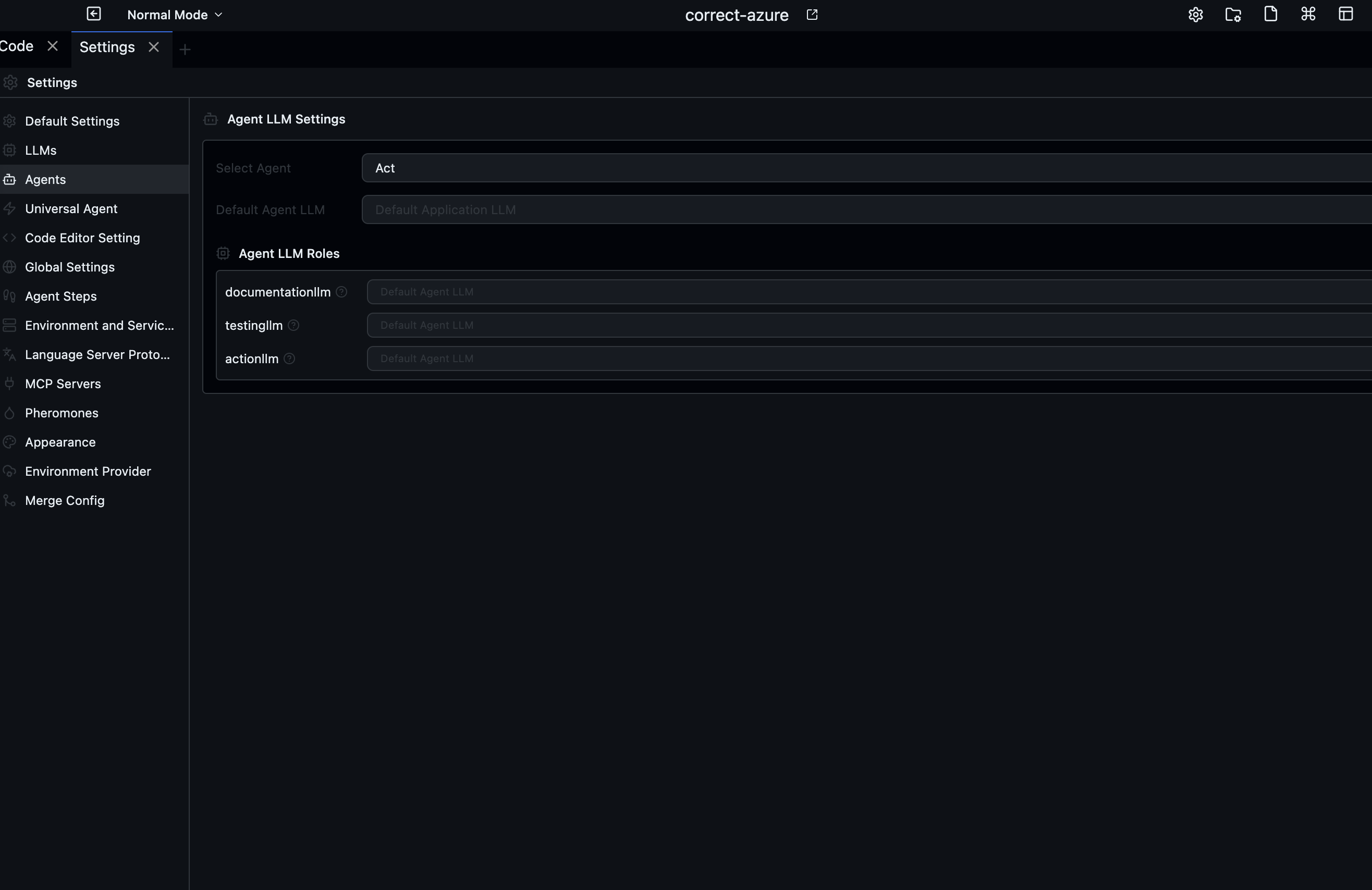
Configure per-agent LLM settings and role-specific LLM overrides (documentation, testing, action).
| Setting | Description |
|---|---|
| Default agent | Which agent to select when opening a new chat tab |
| Max turns | Maximum LLM calls per agent run (prevents runaway loops) |
| Tool timeout | Seconds before a tool call is considered hung |
| Allow file writes outside project | Allow agents to write files outside the project root |
File Exclusions
A list of glob patterns for files and directories that agents should not read:
node_modules/**
.git/**
*.env
dist/**
Excluded files do not appear in file tree listings returned to agents and cannot be read or written by tool calls.
Project Structure
The Project Structure panel (System Settings → Project Structure) shows the full file tree with annotation support. You can:
- Mark directories as "important" — agents are prompted to explore these first
- Add descriptions to files and folders — these appear in agent context
- Hide files from agent view without deleting them
Project structure annotations are stored in .codebolt/structure.json.
MCP Servers
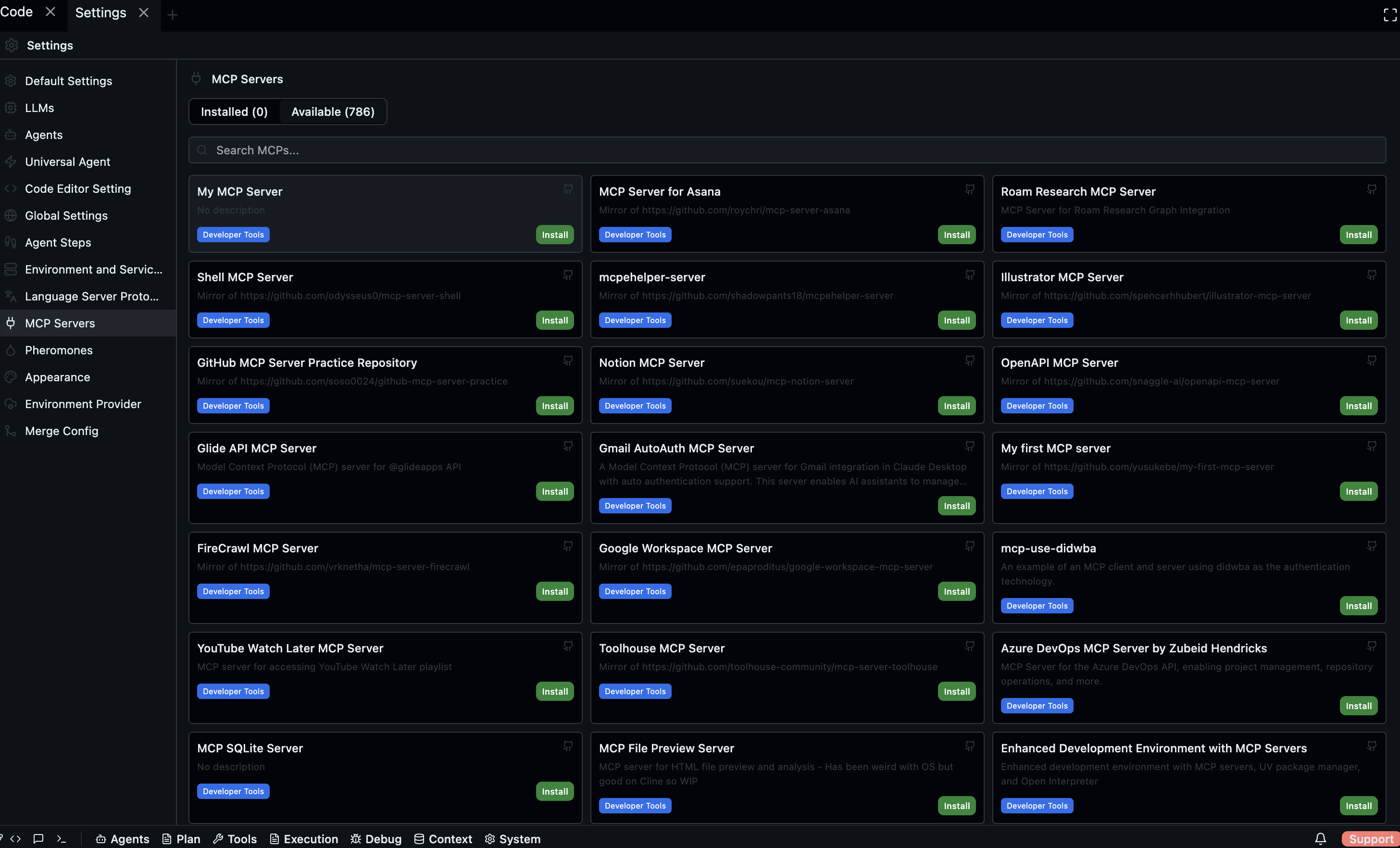
Browse, install, and manage MCP (Model Context Protocol) servers from the Settings panel. Both installed and available servers from the marketplace are shown.
Language Server Protocol
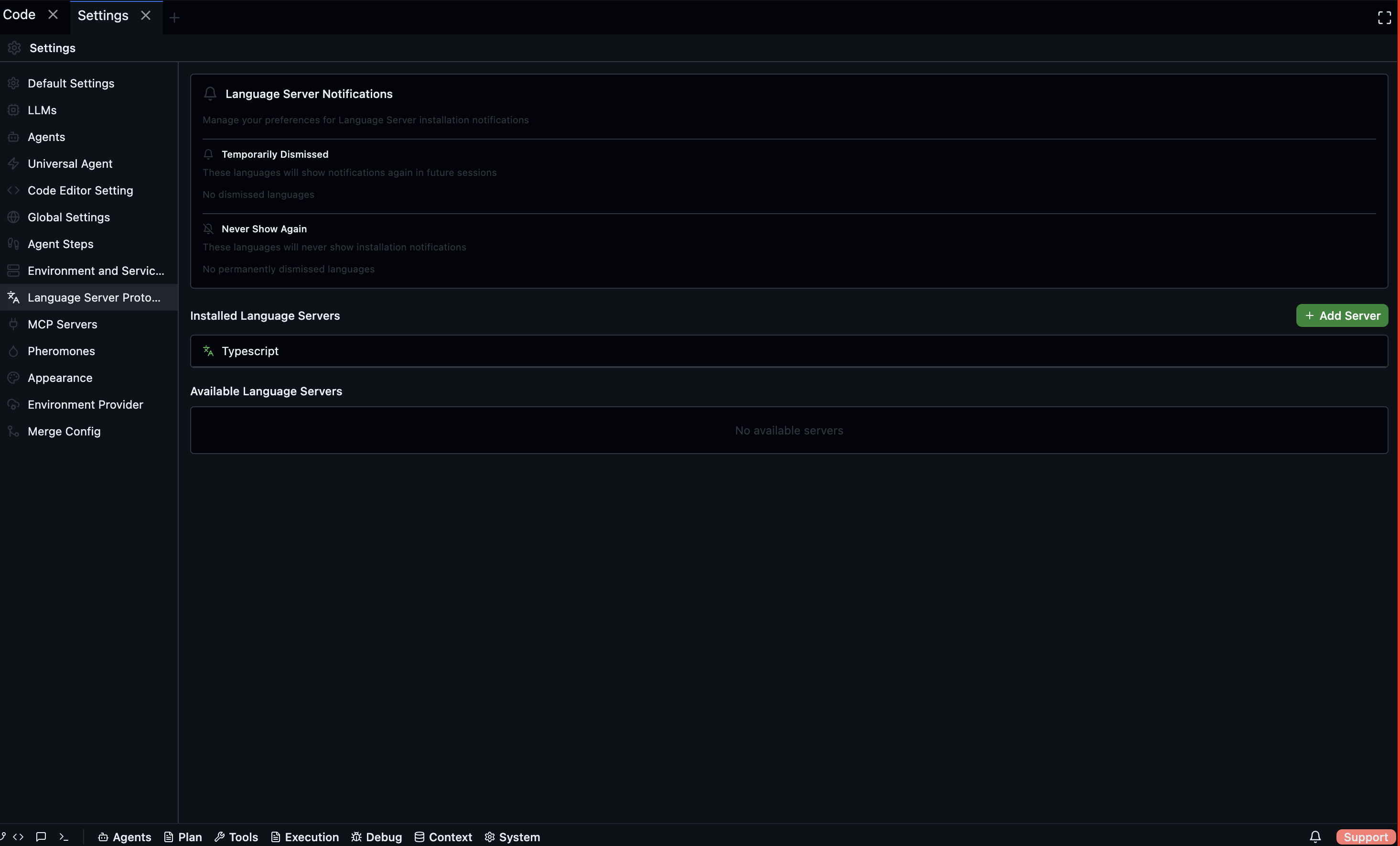
Manage Language Server notifications and installed language servers. You can temporarily dismiss or permanently hide installation prompts for specific languages.
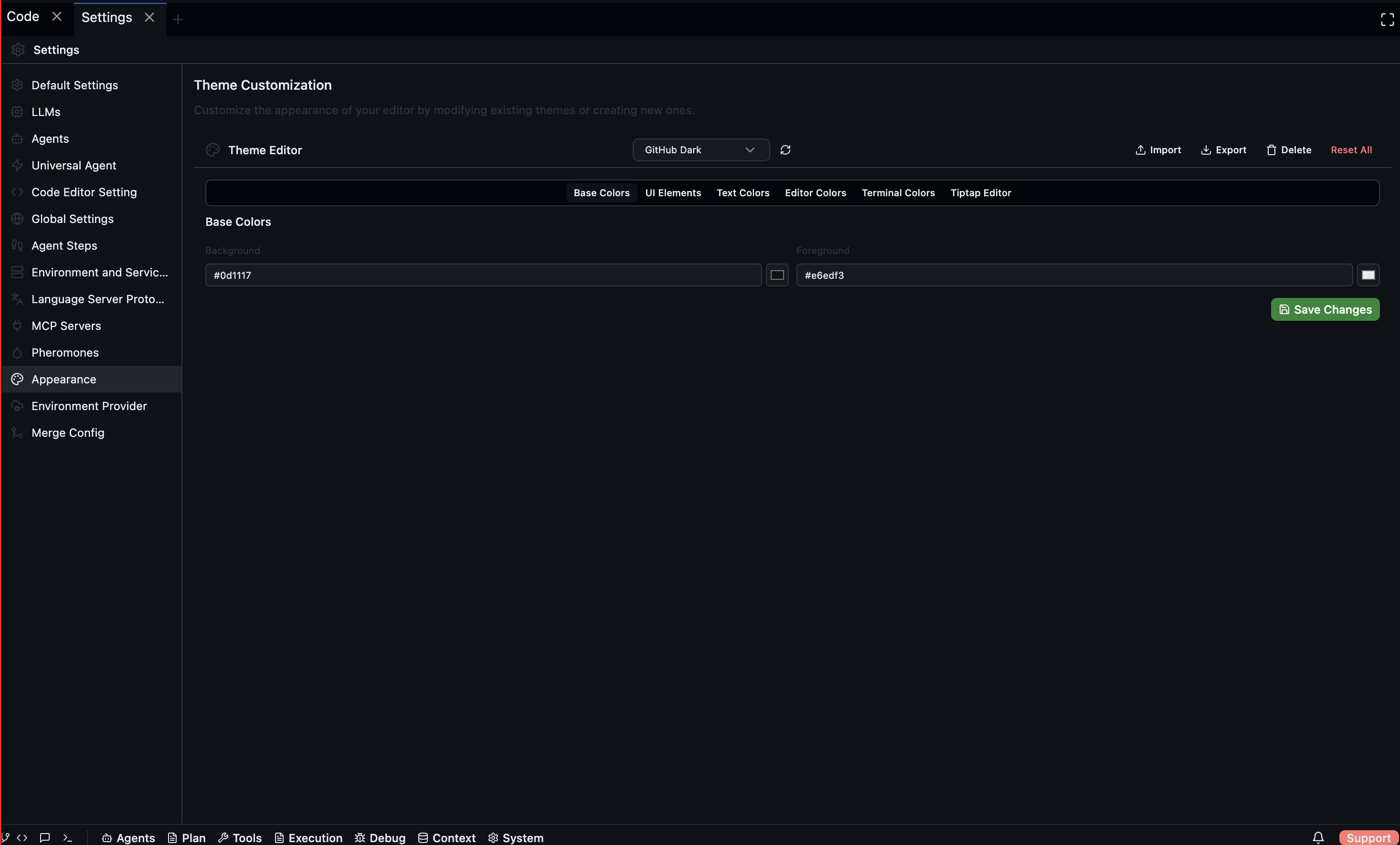
Appearance
Customize the look and feel of Codebolt using the Theme Editor. Modify base colors, UI elements, text colors, editor colors, terminal colors, and Tiptap editor styles.
Extensions
Open via: System Settings dropdown → Extensions
The Extensions panel lists all installed Codebolt extensions — themes, language support packs, custom UI panels, and tool integrations. Each extension shows its name, version, publisher, and a toggle to enable/disable.
Install new extensions from the built-in marketplace view at the top of the Extensions panel, or manually by dropping an extension package into the extensions directory.