Code Editor
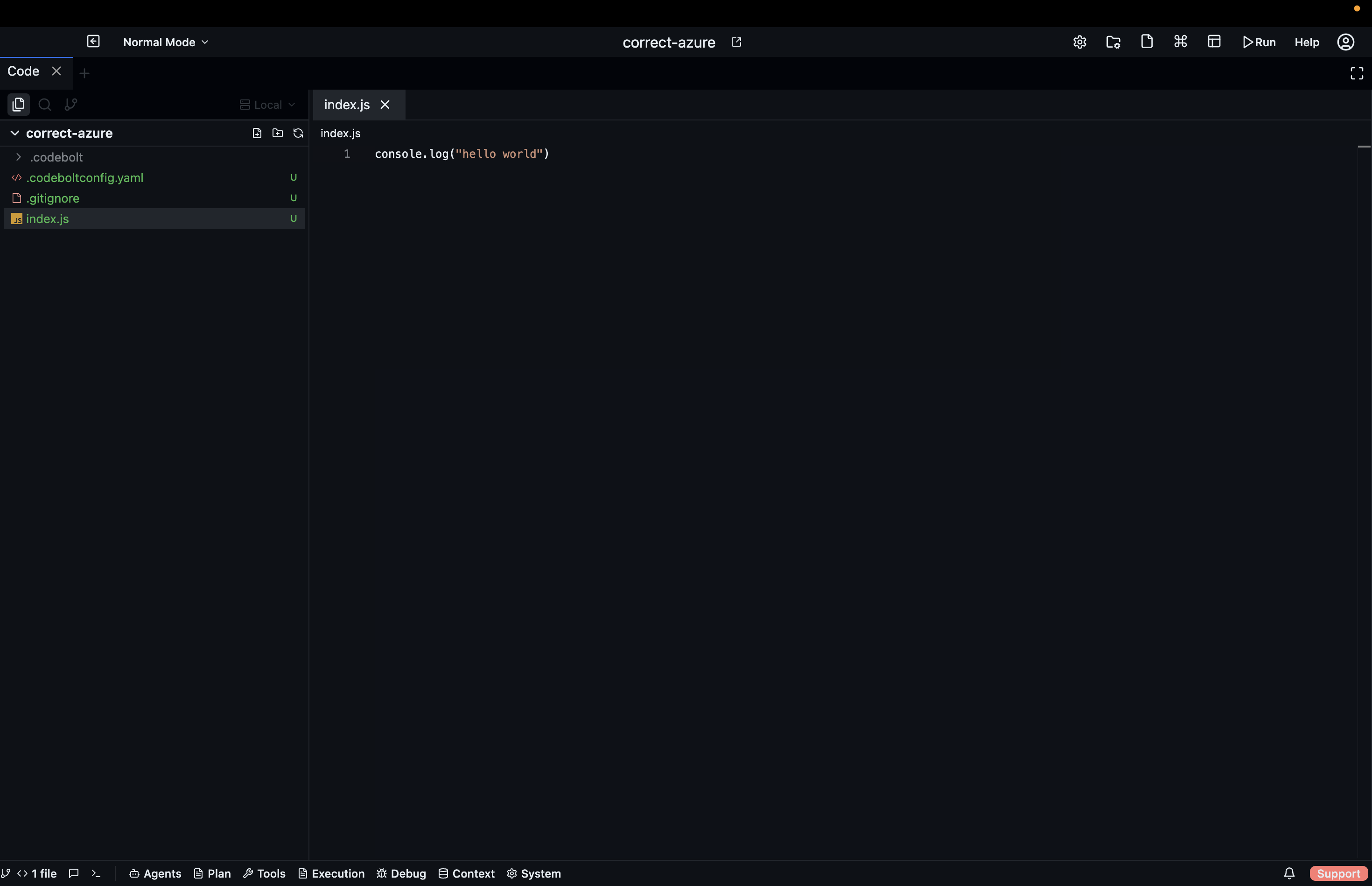
The Code panel is a full Monaco-based editor — the same engine that powers VS Code. It supports syntax highlighting for all common languages, multi-cursor editing, inline diffs, and direct integration with agent actions.
Opening files
- Click any file in the project file tree (left sidebar)
- Use Command Palette (
Ctrl K/⌘ K) and type a filename - Agent actions that create or edit files open them automatically
- Drag a file from the file tree into the editor area to open it in a split
Tabs
Each open file gets a tab at the top of the Code panel. Tabs show a dot indicator when the file has unsaved changes.
| Action | How |
|---|---|
| Open file in new tab | Click file in tree |
| Close a tab | Click × on the tab, or Ctrl W |
| Switch between tabs | Click tab, or Ctrl Tab |
| Split editor | Drag a tab to the left, right, top, or bottom edge |
| Pin a tab | Right-click tab → Pin |
The Code badge in the bottom bar shows the total number of open tabs. Click it to bring the Code panel into view.
Editing
The editor supports all standard Monaco shortcuts:
| Action | Shortcut |
|---|---|
| Multi-cursor (add) | Alt Click |
| Multi-cursor (all occurrences) | Ctrl Shift L |
| Go to definition | F12 |
| Find in file | Ctrl F |
| Find and replace | Ctrl H |
| Format document | Shift Alt F |
| Comment / uncomment | Ctrl / |
| Duplicate line | Shift Alt ↓ |
| Move line up/down | Alt ↑ / Alt ↓ |
| Go to line | Ctrl G |
| Fold/unfold | Ctrl Shift [ / Ctrl Shift ] |
Inline AI edits (Ctrl K)
Press Ctrl K with text selected to trigger an inline edit. A prompt bar appears inline — describe the change you want and press Enter. The agent applies the edit as a diff you can accept or reject without leaving the editor.
This is distinct from the Chat panel — inline edit is scoped to the selection, gives you a unified diff, and does not start a new conversation thread.
Diff view
When an agent proposes changes to a file, the editor automatically enters diff view:
- Red — lines removed
- Green — lines added
- Accept all changes with the Accept button in the top toolbar
- Reject with Discard
- Accept individual hunks with the
+/–buttons in the gutter
You can also open a manual diff between any two files via the Command Palette → "Compare files".
Problems panel
The Problems panel (Debug Tools dropdown → Problems) shows all syntax errors, lint warnings, and type errors across the project. Clicking an entry jumps directly to the relevant line in the editor.
Codemap
The Codemap (Debug Tools dropdown → Codemap) is a structural view of your project — files, classes, functions, and their relationships visualised as a dependency graph. Use it to navigate large codebases and understand how modules connect before asking an agent to make changes.
Keyboard shortcuts (editor-level)
| Action | Shortcut |
|---|---|
| Save file | Ctrl S |
| Save all | Ctrl Shift S |
| Open Command Palette | Ctrl K |
| Toggle file tree | Ctrl B |
| Switch to terminal | Ctrl `` |
| Open new terminal | Ctrl Shift `` |