Terminal
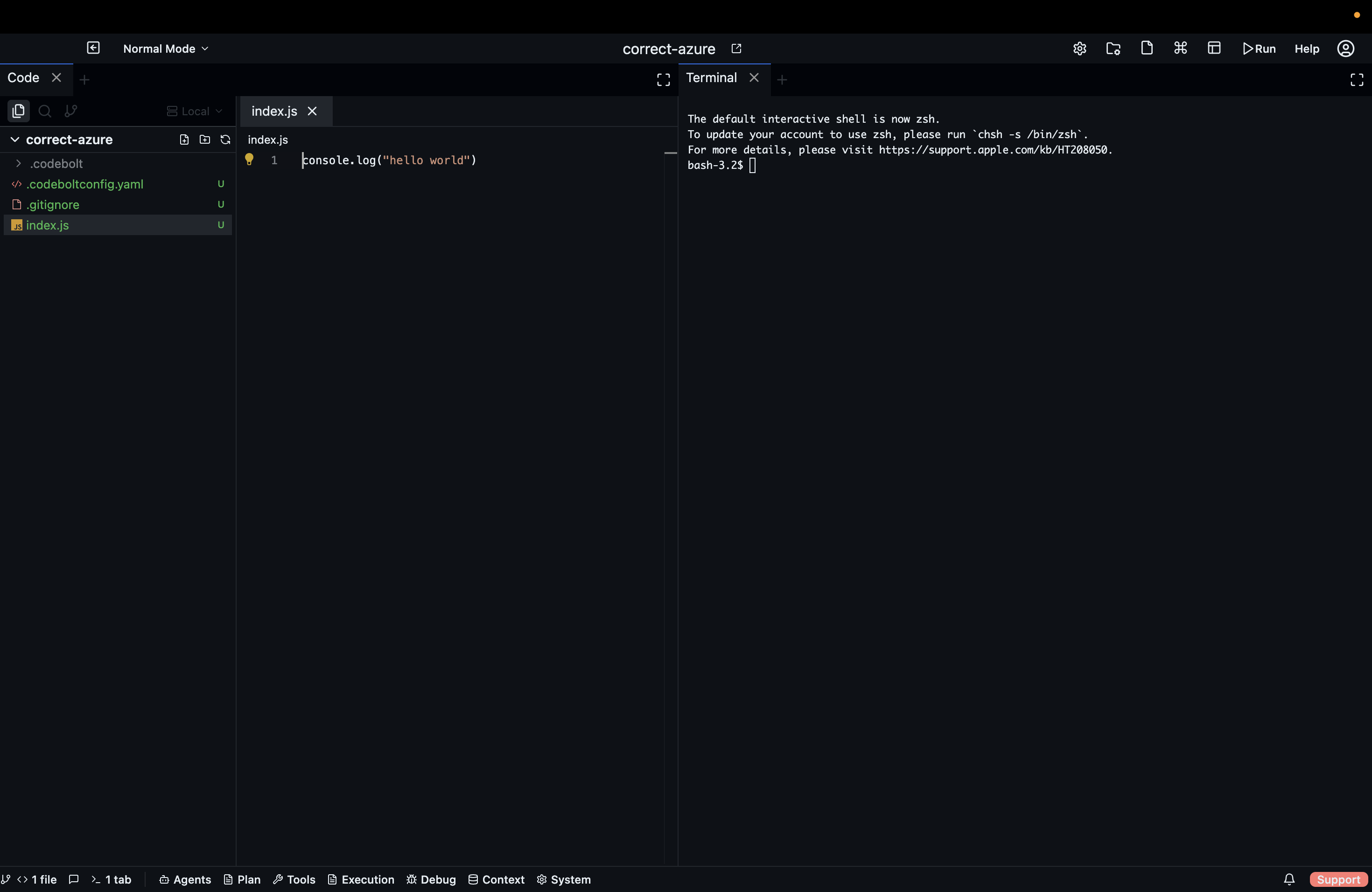
The Terminal panel gives you a full shell session inside the Codebolt workspace. Agents use the terminal to run commands, and you can use it directly in parallel. Multiple terminal instances can be open at once, each in its own tab.
Opening a terminal
- Click the Terminal badge in the bottom bar
- Press
Ctrl `(backtick) - Tools dropdown → Terminal
- From the Command Palette: "Open Terminal"
The badge number shows how many terminal tabs are currently open.
Multiple instances
Click the + icon in the terminal tab bar to open a new shell session. Each session is independent — different working directory, separate process, separate history. You can have as many terminal instances open as you need.
Rename a terminal tab by double-clicking its name. Useful when you have several terminals for different purposes (e.g., "server", "tests", "git").
Splitting the terminal
Drag a terminal tab to the left or right edge of the terminal area to split it. Both terminals remain live — changes in one don't affect the other.
Using the terminal alongside agents
When an agent runs a command (e.g., npm install, git commit, pytest), the output streams in real time to the Agent Debug panel and also appears in a terminal tab assigned to that agent's run. You can watch the output there or interact with it directly if the command waits for input.
If an agent's command produces an error, you can:
- Fix it in the terminal directly and re-run
- Copy the error text and paste it into the Chat panel to let the agent diagnose and retry
- Use
Ctrl Cto interrupt a hanging process
Streaming output
Long-running commands (build processes, servers, test runners) stream output line by line into the terminal. The terminal auto-scrolls to the bottom as output arrives. Click the scroll lock button (top-right of the terminal) to pause auto-scroll and inspect earlier output.
Shell integration
The terminal uses your system's default shell (bash, zsh, PowerShell, or cmd on Windows). You can change the default shell in App Settings → Terminal → Default Shell.
Environment variables set in the terminal do not propagate to the agent runtime. Use the Environment panel to configure persistent environment variables for agent runs.
Keyboard shortcuts
| Action | Shortcut |
|---|---|
| Open terminal | Ctrl ` |
| New terminal tab | Ctrl Shift ` |
| Clear terminal | Ctrl L |
| Interrupt process | Ctrl C |
| Scroll up | Shift PgUp |
| Scroll down | Shift PgDn |
| Copy selected text | Ctrl Shift C |
| Paste | Ctrl Shift V |