Git Panel
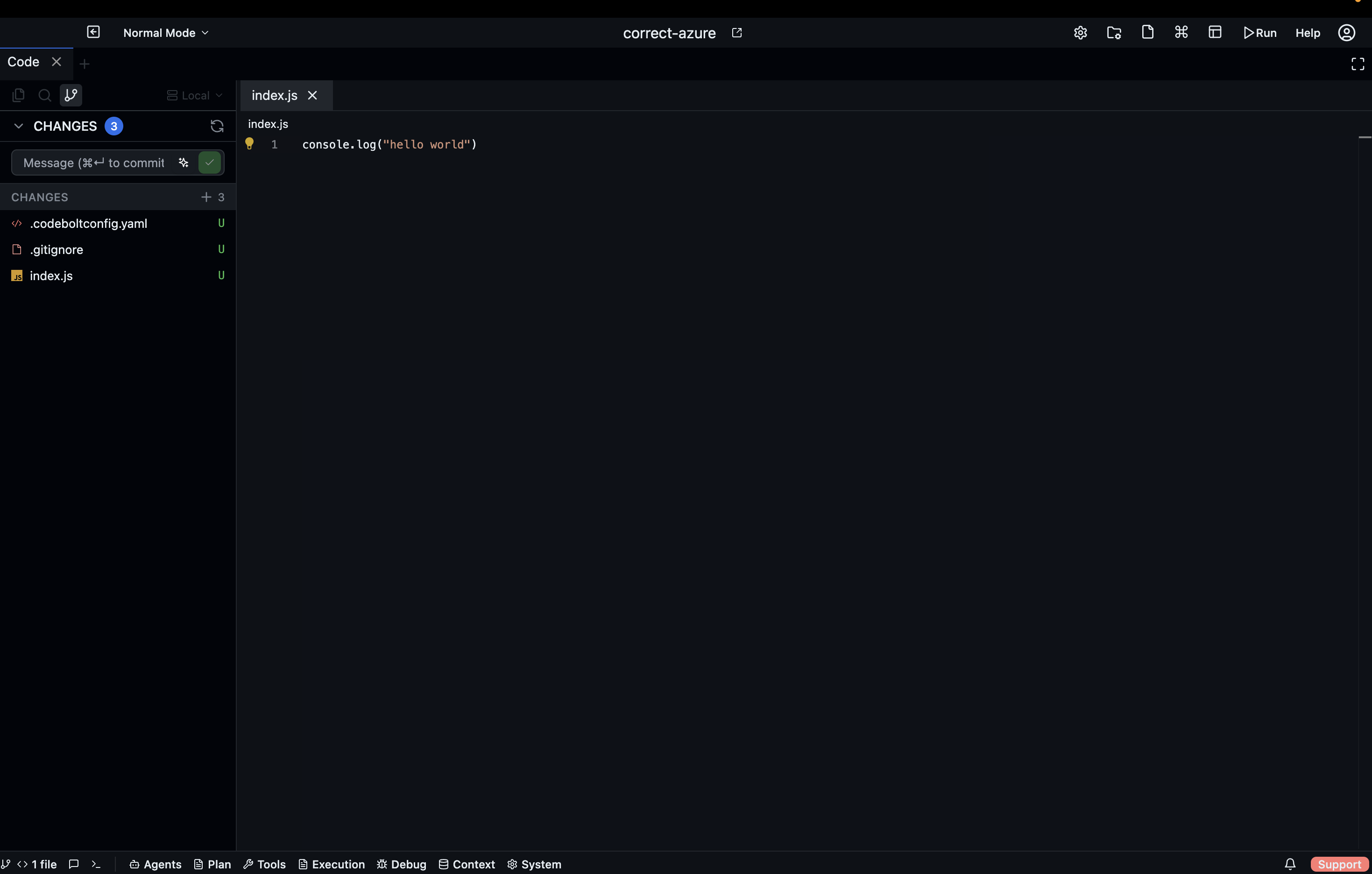
The Git panel gives you a visual interface for staging, committing, branching, and reviewing history — without leaving Codebolt. The bottom bar always shows the current branch name and sync status.
The bottom bar Git section
The leftmost section of the bottom bar displays:
- Branch name — the currently checked-out branch (e.g.,
main) - ↑ N — commits ahead of upstream
- ↓ N — commits behind upstream
- Sync button — pulls and pushes in one click
- Git Graph button — opens the full history view
Click the branch name to open a branch picker for switching or creating branches.
Staging and committing
The Git panel's Changes tab lists all modified, added, and deleted files. Files are grouped into:
- Staged — included in the next commit
- Unstaged — modified but not yet staged
Click the + next to a file to stage it, or – to unstage. Use Stage All / Unstage All at the top to act on all files at once.
Type your commit message in the text field at the bottom of the panel, then press Commit (or Ctrl Enter). The commit is created locally; use Sync or Push to send it to the remote.
Diff view from the Git panel
Click any file in the Changes list to open a split diff view in the Code editor — current file on the left, staged version on the right. Changes are highlighted in green (added) and red (removed).
Branches
Open the Branches tab to see all local and remote branches. From here you can:
- Switch — click a branch name to check it out
- Create — type a new branch name and press Create Branch
- Delete — right-click a branch → Delete (requires it to be merged)
- Merge — right-click a branch → Merge into current
Commit history (Git Graph)
Click Git Graph in the bottom bar to open the history visualisation. The graph shows:
- Commits as nodes, ordered by time
- Branches as coloured lanes
- Merge commits with multiple parents shown as convergence points
Click any commit to see its message, author, date, and the full list of changed files. Click a changed file to open that commit's diff.
Shadow git and checkpoints
Codebolt maintains a shadow git repository alongside your project's real git history. The shadow git records every agent action as a checkpoint — even changes that were never committed to your real repo.
This means you can roll back to any point in an agent's work, not just to the last real git commit. See Checkpoints and Rollback for the full details.
Conflict resolution
When a merge or pull produces conflicts, the Git panel flags the affected files. Click a conflicted file to open the three-way merge view:
- Left — your version
- Center — the merged result (editable)
- Right — the incoming version
Edit the center pane to resolve, then click Mark as Resolved and complete the merge.
Stashing
Right-click the Staged or Unstaged section header → Stash Changes to stash the current working tree. Saved stashes appear in the Stashes tab; click any stash to pop or apply it.