Inline Edit and Ctrl+K
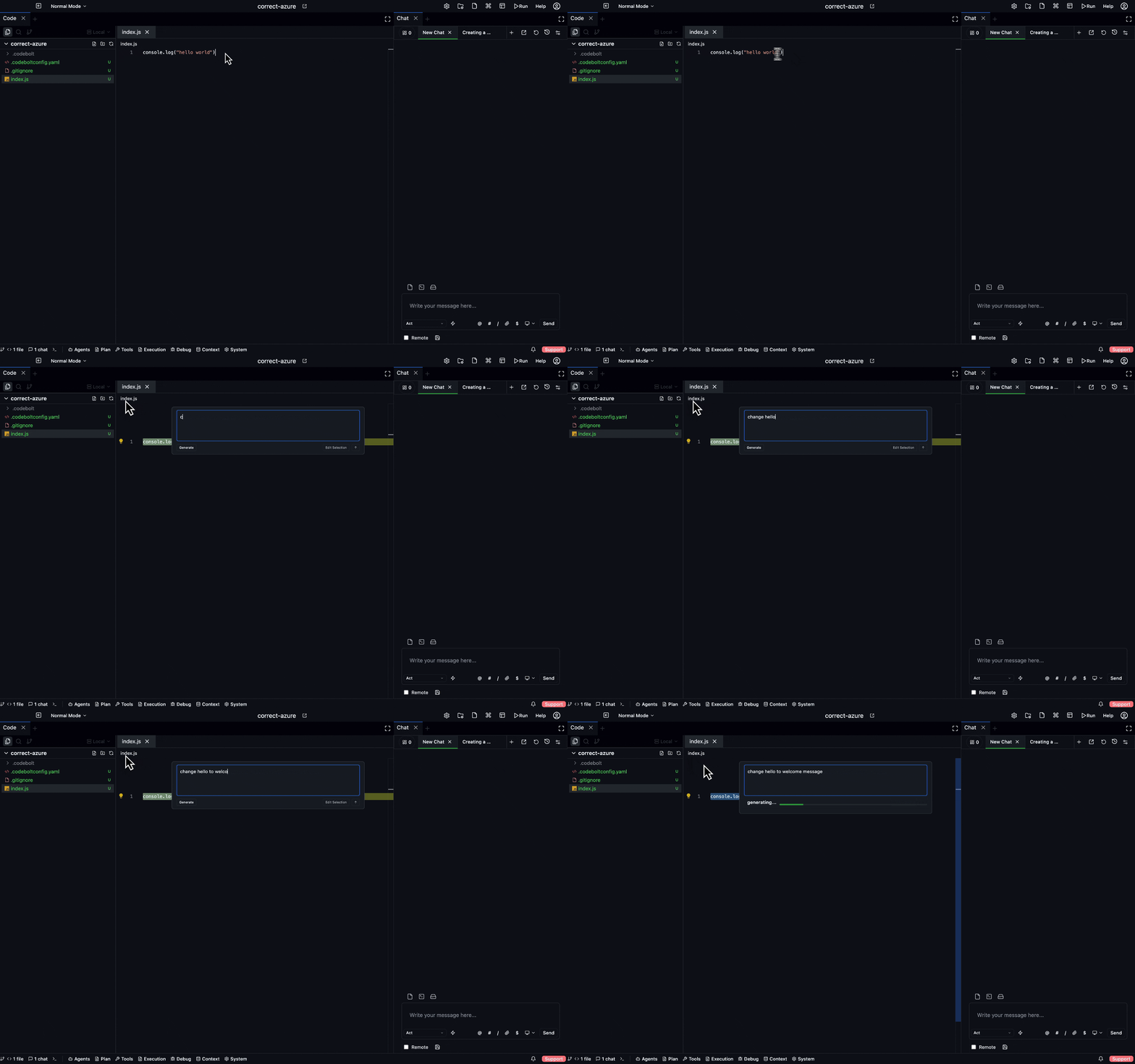
The fastest way to make an LLM-assisted change: select some code, press Ctrl+K, type what you want, done. No chat tab, no turn history, just a single focused edit.
The flow
- Open a file in the editor.
- Select the text you want to change (a line, a function, a block).
- Press Ctrl+K (Cmd+K on macOS).
- An inline prompt box appears over the selection.
- Type what you want:
add error handling,convert to async/await,split into two functions, whatever. - Hit Enter.
- The LLM produces a replacement; you see it as a diff inline.
- Tab to accept, Esc to reject, Ctrl+Enter to edit the prompt and retry.
What it's good at
- Small localised changes. Refactor one function, add a check, rename things within a block.
- Pure translation. "Convert this to TypeScript", "rewrite with idiomatic Python".
- Mechanical improvements. "Add JSDoc", "add null checks", "extract magic numbers to constants".
- Exploratory rewrites. Try several framings of the same code quickly — Ctrl+Enter re-prompts without leaving the flow.
What it's not good at
- Cross-file changes. Ctrl+K only edits the selection. Use a chat tab for work that touches multiple files.
- Planning work. If you need to think about the change first, open a chat tab and talk it through.
- Anything that needs context beyond the selection. Ctrl+K sees the selection plus some surrounding context, but not the whole file or the wider codebase. For context-heavy tasks, chat is better.
How it's different from chat
| Ctrl+K | Chat | |
|---|---|---|
| Scope | One selection, one file | Cross-file, cross-session |
| History | None — no thread created | Persistent thread |
| Checkpoint | One checkpoint per accepted edit | Per turn |
| Tool access | Limited to the selection | Full tool allowlist |
| Latency | Optimised for fast turnaround | Full agent loop |
| Agent | A lightweight inline-edit agent | Any agent you pick |
Ctrl+K uses a special lightweight agent optimised for the inline workflow. It's fast but narrow — if you need more, switch to chat.
Model selection for Ctrl+K
Settings → Chat → Inline edit model sets which model Ctrl+K uses. Usually you want a fast mid-tier model here — the interaction is about iteration speed, not maximum quality.
A common setup: flagship model for chat (quality when you need it), fast model for Ctrl+K (speed for inline work).
Multi-line selections
Ctrl+K handles multi-line selections well. Select an entire function, a code block, or even a whole file section — the inline edit will rewrite the whole selection.
Very large selections (>200 lines) start to hit latency and quality degradation. For those, use a chat tab instead.
Prompts that work well
- "add error handling for X"
- "convert to async/await"
- "extract a helper function for the duplicated part"
- "use a different data structure — prefer Set over Array here"
- "add JSDoc with param and return types"
- "fix the off-by-one bug in the loop"
Short and specific. The selection is already providing the context; the prompt just says what to change.
Prompts that don't work well
- "refactor this" (too vague — refactor how?)
- "improve performance" (what kind? what's the constraint?)
- "make it better" (what does better mean?)
- "add the feature from the spec" (the spec isn't in the selection)
Inline edit can't ask clarifying questions. A vague prompt gets a guessed interpretation.
Inline edit and checkpoints
Every accepted inline edit creates a checkpoint. You can rollback to any previous point without touching real git. The checkpoint strip in the editor gutter shows all inline edits on the current file.
Turning it off
If you don't use Ctrl+K and prefer to assign that shortcut elsewhere: Settings → Keyboard Shortcuts → Inline edit.
See also
- Chat Overview
- Context and @-mentions
- Custom Agents Quickstart — you can build custom inline-edit agents