Tasks
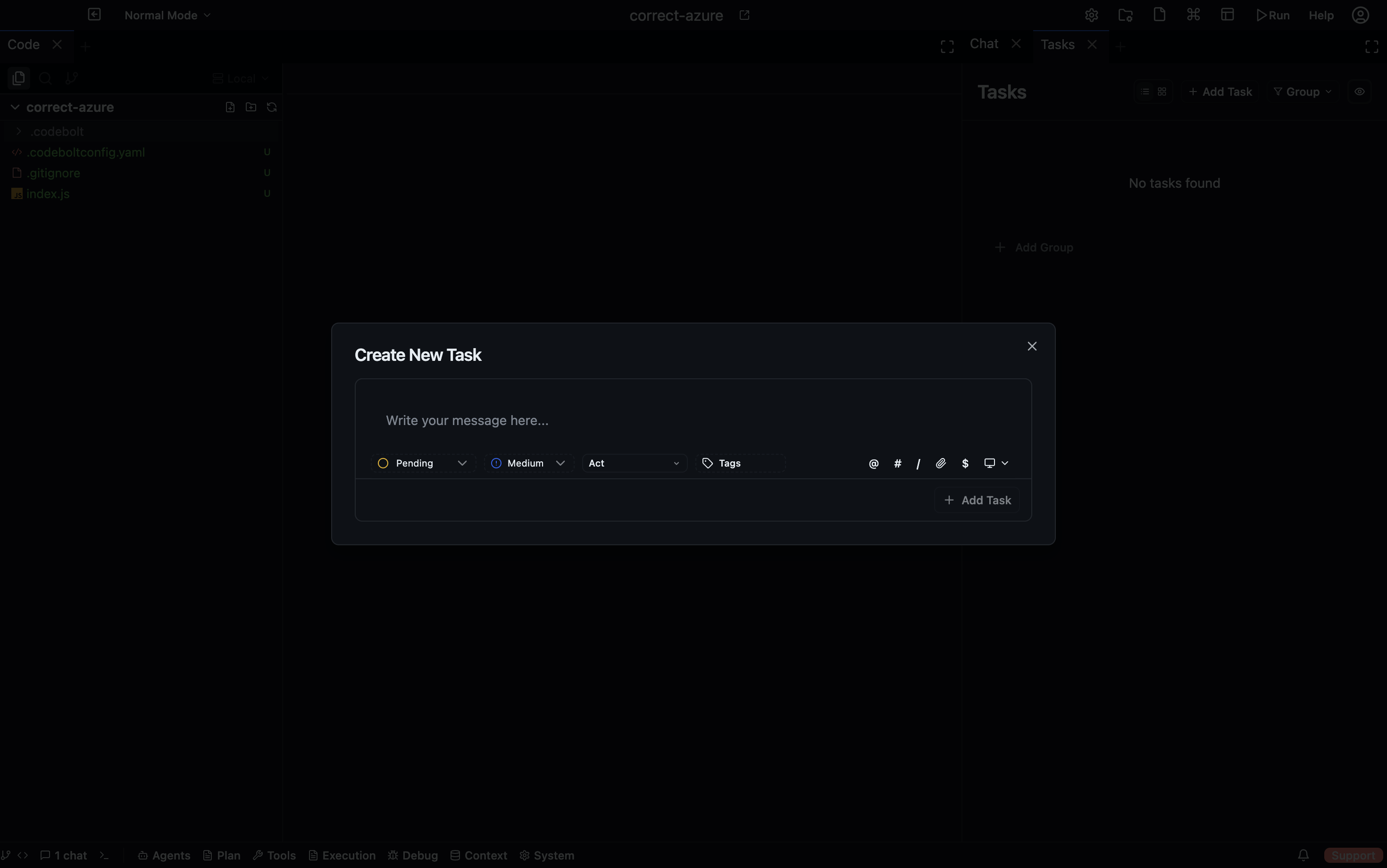
Tasks are individual work items. Unlike Action Plan tasks (which live inside a structured plan), standalone Tasks are a flat, flexible backlog — closer to a kanban board than an execution graph. You can create them manually, generate them from Roadmap features, or have agents create them during their work.
Creating a task
Open the Tasks panel and click + New Task. Fill in:
| Field | Options |
|---|---|
| Name | Short description |
| Description | Longer explanation |
| Status | planned · pending · in_progress · waiting_user · review · completed · cancelled |
| Priority | low · medium · high · urgent |
| Due date | Optional |
| Tags | Free-form labels |
| Assigned to | User or agent name |
Views
The Tasks panel offers three views:
- List — flat list with filters and sort controls
- Kanban — columns by status; drag cards between columns to update status
- Hierarchy — tree view showing parent tasks and their subtasks
Switch between views using the view controls at the top of the panel.
Subtasks
Any task can have child tasks (subtasks). In the task detail view, click + Add Subtask. Subtasks appear indented under their parent in the hierarchy view.
Use subtasks to break a larger piece of work into concrete steps without needing a full Action Plan.
Task dependencies
In the task detail view, use the Depends on field to link a task to another task that must complete first. The dependency is visible in both the list and hierarchy views.
Task messages
Each task has a message history — a log of notes, errors, instructions, and feedback attached to the task over time. Agents write to this log as they work. You can also add messages manually:
| Message type | When to use |
|---|---|
info | General notes |
instruction | Directions for the agent |
feedback | Your review of completed work |
steering | Mid-task course correction |
error | Record of a failure |
warning | Something to watch |
Filtering and search
The filter bar at the top of the Tasks panel lets you filter by:
- Status
- Priority
- Assigned to
- Tags
- Project path
The search box filters by task name and description.
Statistics
The panel header shows a summary: total tasks, in-progress, pending, completed, and overdue. This updates in real time as tasks change.
Converting from Roadmap
In the Roadmap panel, any feature has a Convert to Task button. This creates a Task pre-filled with the feature's title, description, and category tags, and links the task back to the feature.
Agents and tasks
Agents create tasks when they need to track parallel workstreams or break their work into reviewable steps. They update task status as they proceed, so the Tasks panel becomes a live view of what the agent is doing right now.
You can send instructions to a running task by adding an instruction or steering message to it. The agent reads recent task messages as part of its context on each step.
Persistence
Tasks are stored in Codebolt's internal database. They are scoped to a project and survive server restarts. Use the Clean up completed tasks option in the panel overflow menu to remove old completed tasks.
See also
- Action Plan — structured execution plans with dependencies and parallel groups
- Roadmap — feature planning that converts to tasks