UI Flow
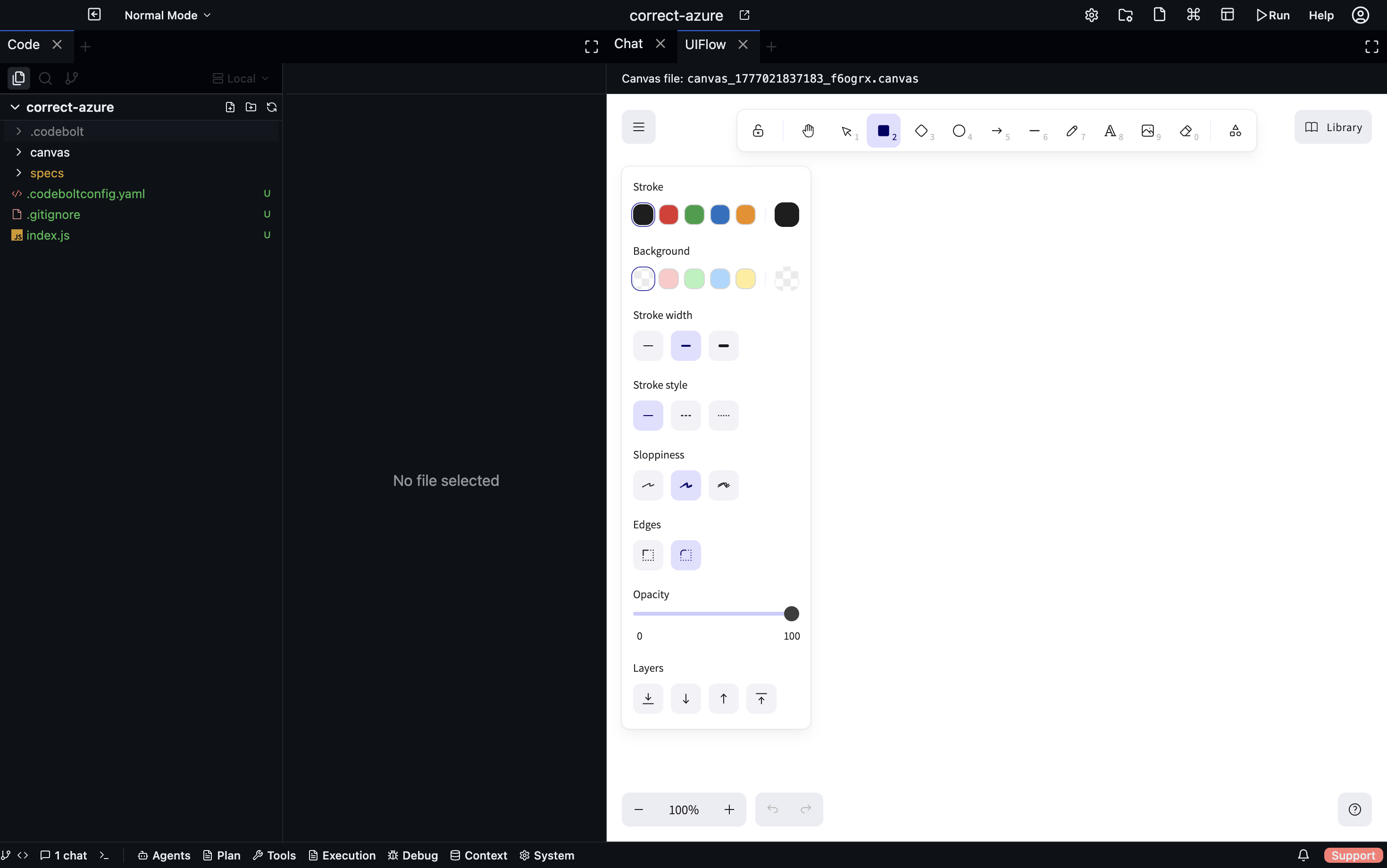
UI Flow is a freehand canvas for wireframes and UI mockups. It uses Excalidraw as its drawing engine, so you get a hand-drawn aesthetic, a full shape library, and infinite canvas — all stored as a JSON file inside your project.
Opening a UI Flow
Open the UI Flow panel from the sidebar. If no flow exists yet, click New UI Flow and give it a name. The canvas opens immediately.
Drawing tools
The toolbar along the top of the canvas includes:
| Tool | What it does |
|---|---|
| Selection | Select and move elements |
| Rectangle / Ellipse / Diamond | Basic shapes for UI components |
| Arrow / Line | Connect components, show flow |
| Text | Labels, annotations |
| Image | Embed screenshots or assets |
| Freedraw | Freehand annotation |
| Eraser | Delete elements |
Keyboard shortcuts
| Key | Action |
|---|---|
V | Selection tool |
R | Rectangle |
E | Ellipse |
A | Arrow |
T | Text |
Ctrl+Z | Undo |
Ctrl+Shift+Z | Redo |
Ctrl+A | Select all |
Space + drag | Pan canvas |
Scroll | Zoom |
Organising a UI flow
There are no layers or artboards — use grouping and visual spacing to separate screens. A common pattern:
- One page of the canvas per screen or state
- Arrows showing navigation between screens
- Labels annotating component names or interactions
- A legend in the corner for colour coding
Theme
The canvas respects Codebolt's light/dark theme. Drawings look the same regardless of which theme is active.
Saving
UI Flow canvases save automatically. Files are stored in .codebolt/uiflows/ as JSON compatible with the Excalidraw format. You can open these files in excalidraw.com or any Excalidraw-compatible editor.
Linking UI flows into a Requirement Plan
Like Specs, UI Flows can be linked as sections inside a Requirement Plan. This lets you include the design mockup alongside the written specification and the execution plan in one document.
See also
- Specs — written specifications to accompany your wireframes
- Requirement Plan — combine specs, flows, and action plans