Installing an Agent
Adding an agent from the marketplace, a private registry, or a local file. Same process regardless of source — what differs is where the manifest comes from.
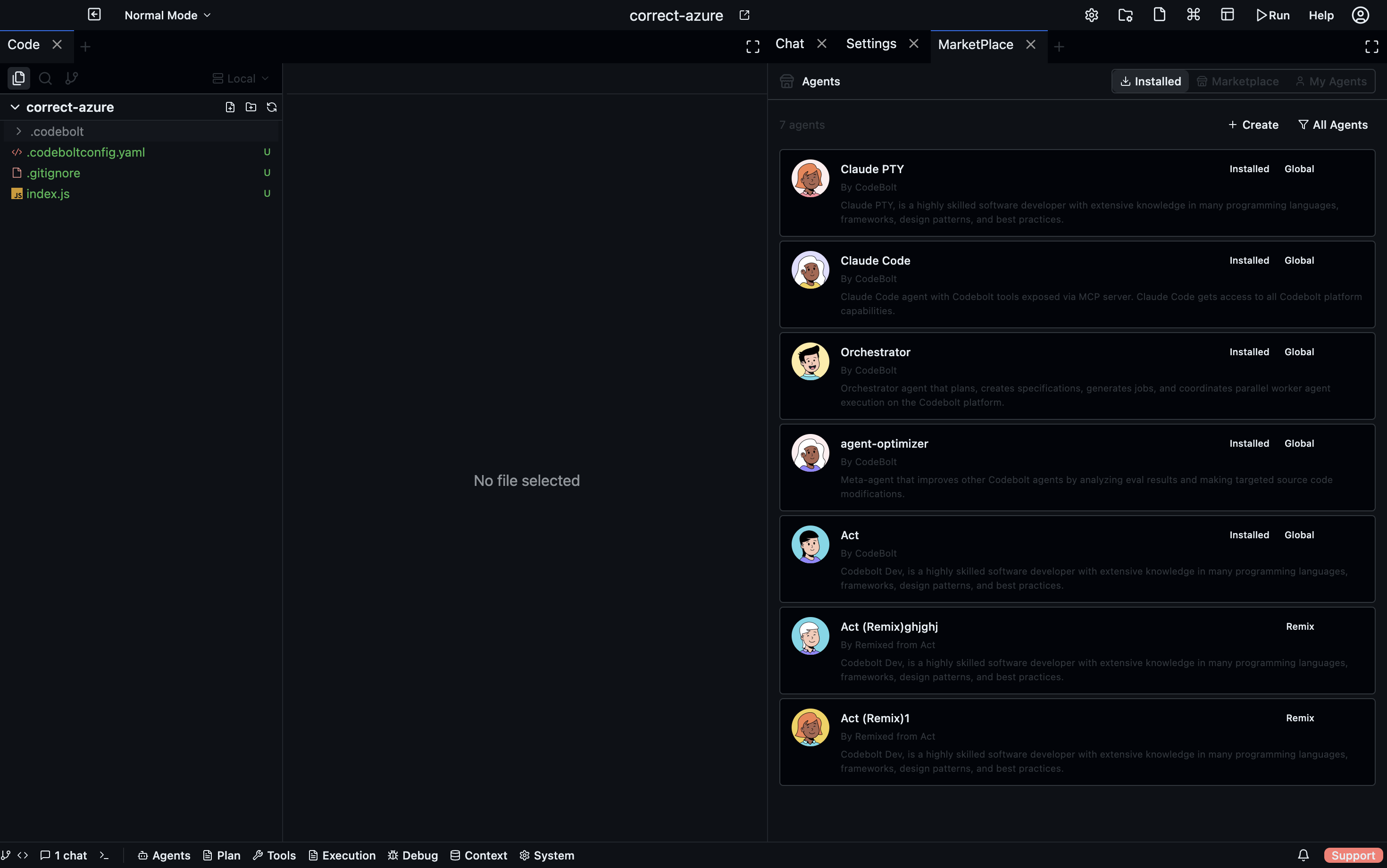
From the marketplace
- Desktop
- CLI
- TUI
- HTTP API
- Plugin SDK
Settings → Marketplace → Agents → browse → click an agent → Install. You're prompted if new permissions are required.
codebolt agent install marketplace/my-agent
codebolt agent install marketplace/my-agent@1.2.0
m → marketplace pane → Tab to Agents → ↑/↓ → Enter → i to install.
POST /api/agents/install
{ "source": "marketplace/my-agent", "version": "1.2.0" }
await codebolt.agents.install('marketplace/my-agent');
Under the hood: download, verify signature, check compatibility, install files, add to portfolio.
From a private registry
If your org runs a private registry:
codebolt agent install org/my-agent --registry https://codebolt.my-org.com
Or configure the registry once:
codebolt config add-registry https://codebolt.my-org.com --token <token>
codebolt agent install org/my-agent    # now uses the private registry automatically
Private registries take precedence over the public marketplace when there's a name collision.
From a local directory
For agents under development, or agents committed to a project repo:
codebolt agent install ./path/to/agent-directory
This adds the local agent to your workspace without publishing it anywhere. Useful for:
- Project-local agents — already in
.codebolt/agents/in the project repo; installed automatically when you open the project. - Development — iterate on an agent before publishing.
- Sharing by email — someone zipped you an agent directory.
From a URL
codebolt agent install https://example.com/my-agent-1.0.0.tar.gz
Downloads, verifies checksum (if provided), installs. Use when the agent isn't on a registry but is hosted somewhere you trust.
What installation does
- Download / copy the agent to the Codebolt agents directory.
- Validate the manifest (
agent.yaml). - Install dependencies if it's a framework agent (runs
npm installinside its directory). - Check compatibility with your Codebolt version.
- Register the agent with the server so it appears in
agent list. - Optionally add to portfolio (if you opt in during install).
Install scopes
- Workspace (default) — agent is available in the current workspace only.
- User — available in every workspace. Promote from workspace with
codebolt agent promote <name>. - Project-local — agent lives in
.codebolt/agents/and is committed to git; everyone who opens the project gets it.
For a team-shared agent, commit it to the project. For something you use across all your own work, promote to user scope.
Dependencies
Some agents depend on other extensions — an MCP server, a capability, a specific LLM provider. During install, you're prompted to install the dependencies if they're missing.
my-agent requires:
  - mcp-server: linter-mcp (not installed) [Install]
  - capability: ts-analyzer (not installed) [Install]
  - provider: anthropic (configured ✓)
You can install everything at once or pause and handle dependencies manually.
Checking install state
codebolt agent list
Shows every installed agent with its source and version. --verbose adds install date, dependencies, and path.
codebolt agent show my-agent --status
Shows whether the agent is healthy, whether its dependencies are satisfied, and whether there's an update available.
Updating
- CLI
- Desktop
- HTTP API
- Plugin SDK
codebolt agent update my-agent            # latest
codebolt agent update my-agent@1.3.0      # specific version
codebolt agent update-all                 # all non-breaking
update-all skips any update that would cross a major version — those require explicit opt-in.
Agents panel → row context menu → Update. Bulk update via Settings → Agents → Update All.
POST /api/agents/:name/update
POST /api/agents/:name/update  { "version": "1.3.0" }
await codebolt.agents.update('my-agent');
await codebolt.agents.update('my-agent', { version: '1.3.0' });
Uninstalling
- CLI
- Desktop
- HTTP API
- Plugin SDK
codebolt agent uninstall my-agent
Agents panel → row context menu → Uninstall. Confirmation dialog.
DELETE /api/agents/:name
await codebolt.agents.uninstall('my-agent');
Removes the files, removes from portfolio, removes from the agent list. Does not delete:
- Historical runs of that agent (still in the event log).
- Memory the agent wrote (still in persistent memory).
- Checkpoints taken during its runs.
To purge everything:
codebolt agent purge my-agent --delete-data
Irreversible.
Install troubleshooting
"Version incompatible"
The agent requires a newer or older Codebolt than you have. Update Codebolt, or find a compatible version of the agent.
"Dependency not satisfied"
Install the missing dependency and retry.
"Signature invalid"
The downloaded bundle is either tampered with or from an untrusted publisher. Don't bypass — investigate.
"Permission denied writing to agents directory"
Filesystem permission issue. Check ownership of ~/.codebolt/agents/ (or .codebolt/agents/ for project scope).