Running Agents
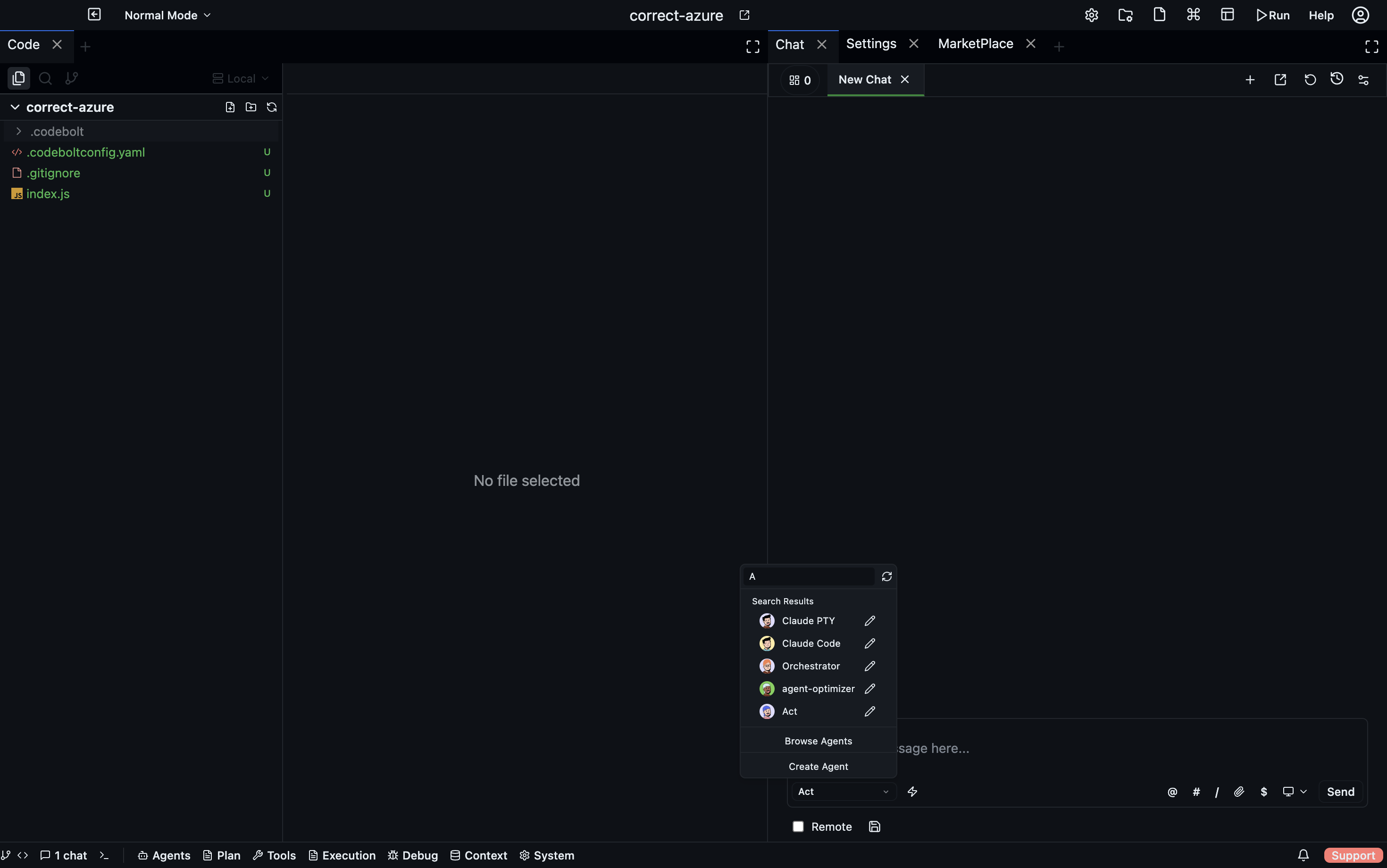
Same underlying runtime, multiple ways to start a run. Pick the surface that matches what you're doing — interactive work in chat, scripted runs from the CLI, fixed pipelines via flows, or autonomous background runs via triggers.
Starting an interactive run
- Desktop
- CLI
- TUI
- HTTP API
- Plugin SDK
Open a chat tab, pick an agent from the dropdown, type a message:
[tab] agent: generalist ▾   model: claude-sonnet-4 ▾
user: Rename getUser to fetchUser everywhere
You see every step inline. Interactive, checkpointed, rollback-able. Closing the tab doesn't kill the run immediately — it finishes the current step and exits — but you lose the live view.
codebolt agent start generalist --task "rename getUser to fetchUser"
codebolt agent start <agent> \
  --task "..."              # the task description
  --input '{"key": "..."}'  # typed input (for agents with an inputs schema)
  --project /path/to/proj   # which project (defaults to cwd)
  --model claude-sonnet-4-6 # override model
  --watch                   # stream progress to stdout
  --detach                  # run in background, return a run ID
Same runtime, same checkpoints, same memory — just headless. Useful for scripting, CI, remote SSH sessions, or backgrounding while you do something else.
See CLI → Agent commands for the full reference.
Press a to open the agents pane, navigate with ↑/↓, press Enter on an agent to start a thread. Type the task in the composer at the bottom. Every step appears inline, just like the desktop chat.
POST /api/agents/:name/start
Content-Type: application/json

{
  "task": "rename getUser to fetchUser",
  "model": "claude-sonnet-4-6"
}
Returns { runId, threadId }. Subscribe to events via GET /api/runs/:runId/events (SSE) or poll GET /api/runs/:runId.
import codebolt from '@codebolt/codeboltjs';

const run = await codebolt.agents.start('generalist', {
  task: 'rename getUser to fetchUser',
});

for await (const event of run.events()) {
  console.log(event.type, event);
}

const result = await run.result();
Agent flows
When you want a fixed pipeline instead of a chat loop, run a flow. The flow runtime reads a declarative graph (nodes = agents, edges = data flow) and executes it; each node is still a normal agent run, the flow is just wiring.
- CLI
- Desktop
- HTTP API
codebolt flow run plan-execute-review --input '{"task": "..."}'
Flows panel → Run on a flow card. Inputs are filled via a generated form from the flow's input schema. The run appears in the runs panel like any other.
POST /api/flows/:name/run
{ "inputs": { "task": "..." } }
Use flows for repeatable multi-agent patterns. See Reading a flow.
Background triggers
Some agents run without you starting them. A background agent declares triggers: in its manifest:
triggers:
  - type: cron
    schedule: "0 9 * * 1"     # Mondays at 9 AM
  - type: file_change
    pattern: "src/**/*.ts"
  - type: webhook
    path: /hooks/my-agent
When the trigger fires, the agent runs. Results land in the Background Agents panel (desktop) or via codebolt agent history (CLI).
Use for scheduled audits ("every Monday, run the reviewer on last week's changes"), reactive work ("when any file under schema/ changes, regenerate types"), and webhook integrations ("when GitHub posts a PR event, run a reviewer and comment").
Watching a running agent
- Desktop
- CLI
- HTTP API
- Plugin SDK
The chat tab (or Background Agents panel) shows tool calls and LLM calls as they happen, with timing for each phase.
codebolt agent watch <run_id>
Streams events to stdout. --filter type=tool.call to narrow down.
GET /api/runs/:runId/events # Server-Sent Events stream
const run = await codebolt.runs.get(runId);
for await (const event of run.events()) {
  // ...
}
Every phase — deliberate, execute, reflect — appears with timing and inputs/outputs. Nothing is hidden.
Stopping a running agent
There are two flavours: graceful (lets the agent finish its current phase, emit a clean run.stopped event, flush memory, exit) and force (immediate kill, run marked killed with reason forced). Use force only when graceful doesn't respond.
- Desktop
- CLI
- HTTP API
- Plugin SDK
- Esc in the chat tab — graceful stop at the next phase boundary.
- Stop button in the agent run panel — same.
- Force kill in the run details menu — for hung runs only.
codebolt agent stop <run_id>     # graceful
codebolt agent kill <run_id>     # force
POST /api/runs/:runId/stop
POST /api/runs/:runId/kill
await run.stop();   // graceful
await run.kill();   // force
Interrupting to add information
If the agent is mid-task and you realise it's missing something, don't stop it — interject. Type a new message while the agent is working; it queues up and is delivered at the next phase boundary. The agent gets "user added context mid-run" as part of its next deliberation.
This is different from stopping and starting a new turn — the queued message shares the same thread and context.
Running multiple agents at once
- Different tabs — independent, parallel. Each has its own agent.
- Child agents — one agent spawns another via
codebolt_agent.start. The child runs as a nested run. See Agent run end-to-end. - Flow — a declared multi-agent pipeline, graph-based.
- Swarm — a dynamic group of cooperating agents. See Running a swarm.
All of these are bounded by server-wide limits: max concurrent agent processes, max spawn rate, etc. See Self-hosting → Scaling if you hit them.
Agent history
Every run is recorded — successful or failed, from any starting point.
- Desktop
- CLI
- HTTP API
Agents panel → History tab. Filter by agent, status, date.
codebolt agent history [--agent <name>] [--limit N]
codebolt events query "type == run.ended" --since "today"
GET /api/runs?agent=my-agent&limit=20&status=ended
Each entry has the run ID, agent, outcome, duration, token usage, cost, and a link to the trace.
Limits and budgets
Every agent has limits in its manifest:
max_tool_calls— stop after N tool callsmax_tokens— stop when total tokens exceed Nmax_wall_time_seconds— stop after N seconds of real timemax_cost_usd— stop when cumulative cost exceeds $N
Hitting any of these stops the run with terminal state killed and reason budget_<kind>. You can raise the limit for a specific run with --limits on the CLI or by editing the agent's yaml.
Monitoring in the UI
Running Agent panel
Open via the Execution dropdown → Running Agent in the bottom bar. The panel shows every agent process currently executing with:
- Agent name and ID — which agent is running
- Thread link — click to jump to its conversation thread
- Status — current phase (
thinking,executing tool,waiting, etc.) - Duration — how long the run has been active
- Token usage — cumulative input/output tokens this run
- Stop button — immediately terminates the agent process
The panel refreshes in real time. When a run completes it disappears from the list; the thread is marked completed.
Background Agents panel
Open via Execution dropdown → Background Agents. Background agents run without a visible chat thread. They are started by lifecycle hooks, scheduled triggers, or another agent delegating work asynchronously.
An agent moves from the active panel to Background Agents when:
- Its initiating chat tab is closed but the process is still running
- It was started programmatically without a user-facing thread
- It was detached via
codebolt.run.detach()in agent code
System alert notifications
The bell icon (top-right of the bottom bar) shows a progress bar entry for every active agent. Click a notification to jump to that agent's thread without opening the Running Agent panel.