Agent Settings
Agent LLM Settings
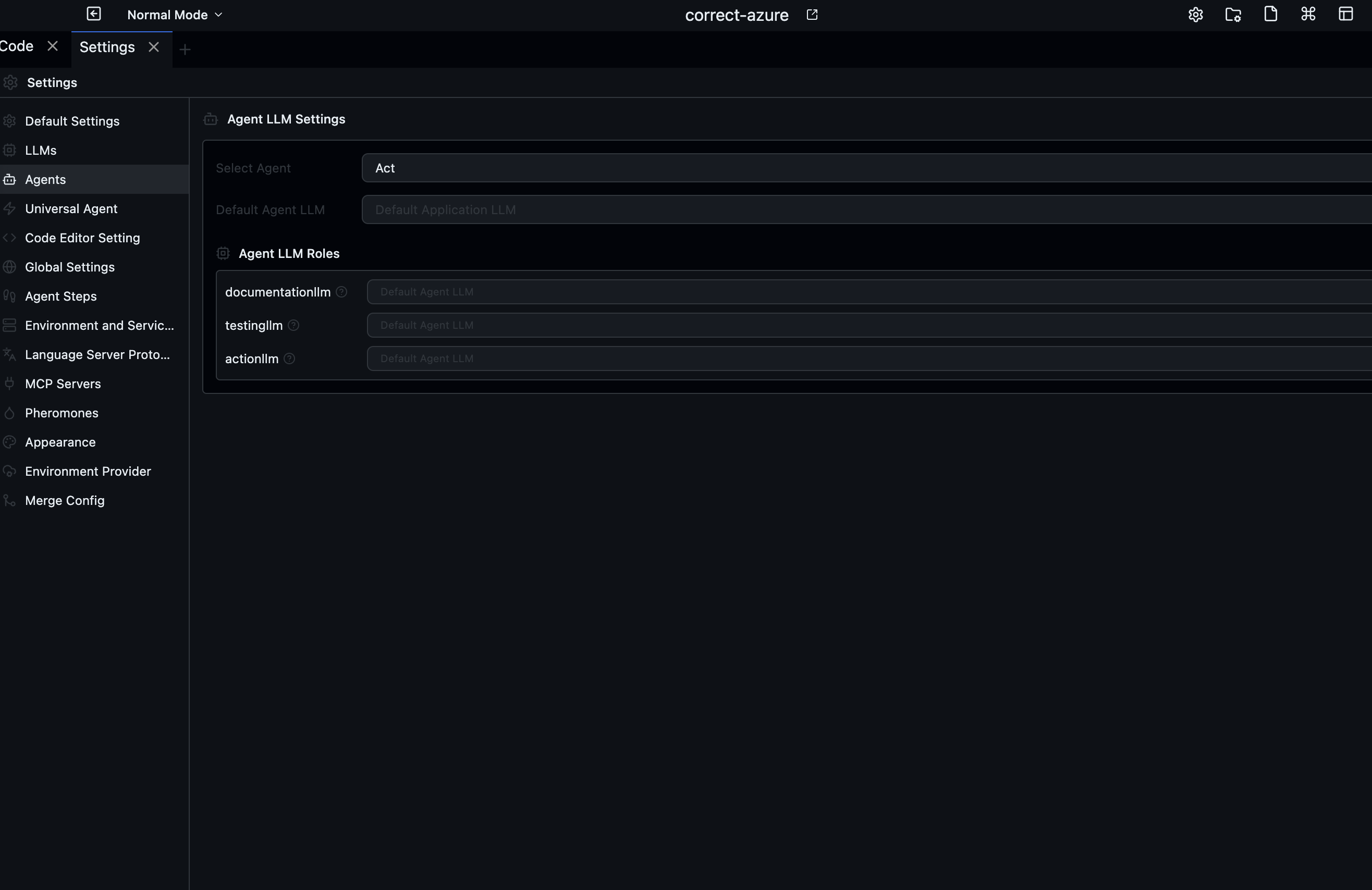
Override the default LLM for a specific installed agent, and assign different models to each of that agent's LLM roles.
- Select an Agent from the dropdown.
- Set the Default Agent LLM — this model is used for any role that doesn't have its own assignment. Choose Default Application LLM to inherit the global setting.
- For each LLM Role listed (e.g.
planner,executor,reviewer), assign a specific model. Hover the help icon to see a description and recommended models for that role. - Click Update to save.
Roles are defined by the agent itself, so the list varies per agent.
Universal Agent
Configure a custom or offline endpoint for the Universal Agent — the built-in orchestration agent that Codebolt uses when no other agent is specified.
| Option | Description |
|---|---|
| Enable Custom Universal Agent | When on, enter a URL for your own agent endpoint. The Universal Agent will send requests there instead of the built-in service. |
| Use Offline Universal Agent | When on, the Universal Agent runs fully locally without any cloud calls. |
Agent Steps
Assign specific agents to each phase of the development workflow. When Codebolt runs a workflow step (code generation, testing, etc.), it routes to the agent you've assigned here.
| Step | Purpose |
|---|---|
codegeneration | Writing or modifying code |
testing | Running or generating tests |
deploy | Deployment tasks |
documentation | Generating docs |
review | Code review |
userquestion | Answering user questions mid-workflow |
For each step you can assign a primary agent and optionally one or more secondary agents. Set to Auto to let Codebolt choose the best agent automatically.
Code Editor Setting
Assign agents to two specific editor interactions:
| Setting | Trigger | Description |
|---|---|---|
| In-Code Edit Agent | Ctrl+K / Cmd+K | Agent invoked for inline code editing inside the editor |
| Codemap Agent | Codemap generation | Agent used to generate the project dependency graph |
Select an agent from each dropdown. These settings are stored locally per machine.