Application Layout
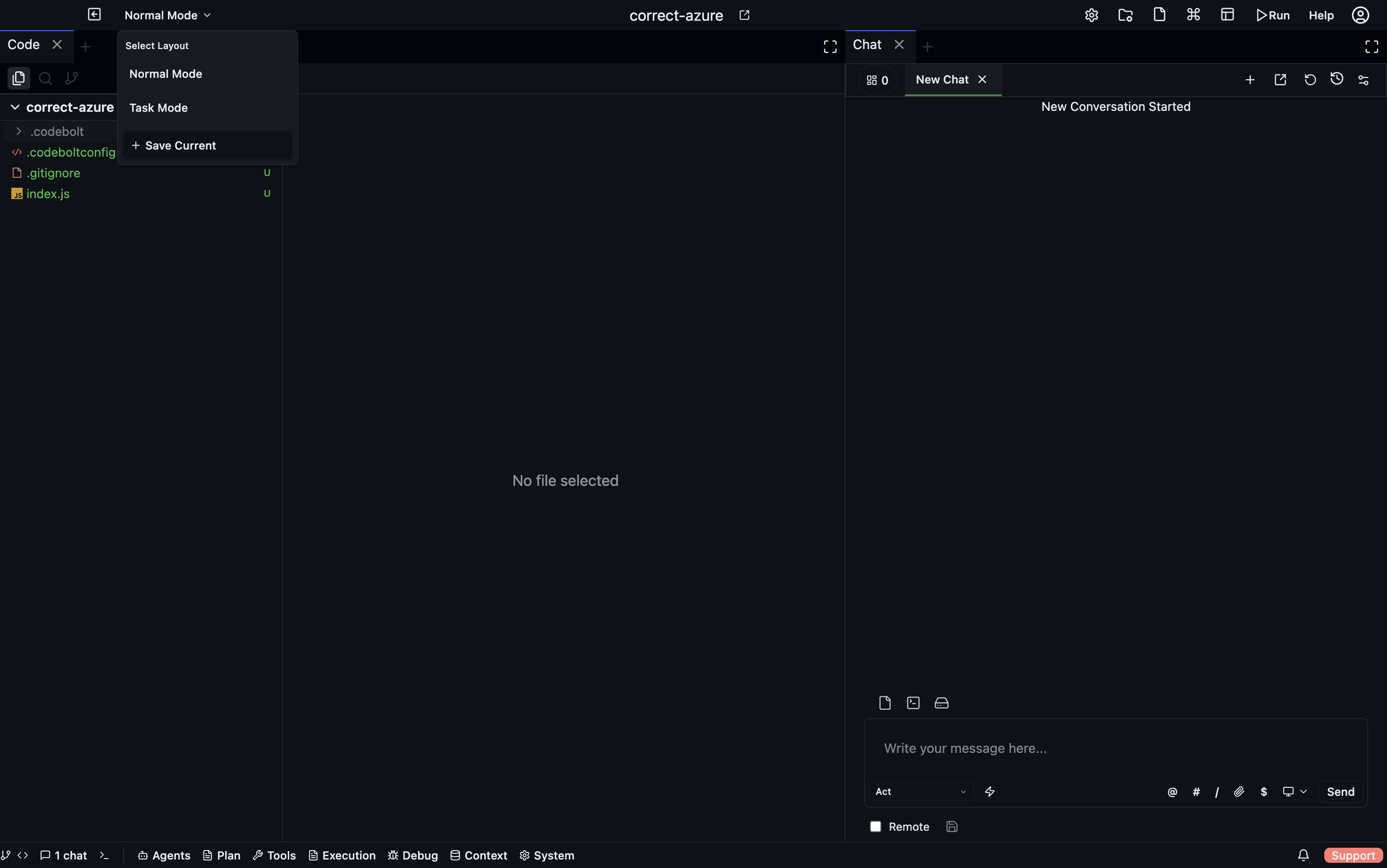
Codebolt's interface is divided into three persistent zones — a top navbar, a central workspace, and a bottom bar — plus a panel system that lets you open, close, and rearrange any view.
┌──────────────────────────────────────────────────┐
│                   Top Navbar                     │
├──────────────────────────────────────────────────┤
│                                                  │
│              Main Workspace                      │
│         (panels, tabs, split views)              │
│                                                  │
├──────────────────────────────────────────────────┤
│                  Bottom Bar                      │
└──────────────────────────────────────────────────┘
Top Navbar
The top navbar spans the full width of the window and is split into three sections:
| Section | Contents |
|---|---|
| Left | Windows menu (Windows/Linux), back button, layout picker |
| Center | Project name, reveal-in-folder button, app mode indicator |
| Right | Settings, project settings, command palette, run button, user menu, update chip, window controls (Windows/Linux) |
Main Workspace
The central area uses a Dockview-based panel system. Panels open as tabs, can be split horizontally or vertically, dragged into floating windows, and rearranged freely. Layouts are serialised and restored between sessions.
The default layout opens Code on the left and Chat on the right. In app mode (when running a published agent) it opens Chat on the left and Preview on the right.
Any panel can be added to the workspace from the bottom bar dropdowns described below.
Bottom Bar
The bottom bar runs along the bottom of the window and is the primary launcher for all panels. It contains quick-access buttons for the three core panels and a set of dropdown menus that group the rest.
Quick-access buttons
| Button | Opens |
|---|---|
| Git | Branch switcher, push/pull controls, git graph |
| Code (file count badge) | Code editor panel |
| Chat (tab count badge) | Chat panel |
| Terminal (tab count badge) | Terminal panel |
Dropdown menus
Agents
Agent management and extension panels.
| Item | Panel |
|---|---|
| Agent List | Marketplace — browse and install agents |
| Capabilities | Versioned capability bundles |
| Action Block | Side-execution code blocks |
| MCP | Model Context Protocol server configuration |
| Plugins | Channel and integration plugins |
| Eval | Agent evaluation runs |
Plan
Planning and task management panels.
| Item | Panel |
|---|---|
| Tasks | Kanban task board |
| Action Plan | Structured execution plans |
| Specs | Technical specification documents |
| UI Flow | Wireframe canvas |
| Requirement Plan | Aggregate requirement documents |
| Roadmap | Feature and phase roadmap |
Tools
Day-to-day workspace tools.
| Item | Panel |
|---|---|
| Chat | Chat with agents |
| Browser | In-app browser |
| Terminal | Integrated terminal |
| Code | Code editor |
| Jobs | Multi-agent job queue |
| Inbox | Agent mail inbox |
| Calendar | Scheduled events |
Execution
Panels for running, orchestrating, and reviewing multi-agent workflows.
Tracking
| Item | Panel |
|---|---|
| Thread Panel | Active conversation threads |
| Environment | Runtime environment details |
| Running Agent | Live agent instance view |
| Chat Canvas | Freeform multi-agent visual workspace |
| Background Agents | Agents running in the background |
Orchestration
| Item | Panel |
|---|---|
| Auto Testing | Automated agent test runs |
| Orchestrator Management | Active orchestrator routing layer |
| Distributed Swarm Management | Swarm group management |
| Review Merge Request | Orchestration review queue |
| Agent Deliberation | Voting and consensus panel |
| Update Project Structure | Project structure change requests |
Debug
Debugging and observability panels.
| Item | Panel |
|---|---|
| Agent Debug | Log stream, tool calls, LLM calls per agent instance |
| Environment Debug | Resolved environment variables |
| Plugin Debug | Plugin WebSocket messages and errors |
| AI Debug | Raw LLM input/output |
| Preview | In-app preview browser |
| Console | stdout/stderr output |
| Problems | Syntax errors and lint warnings |
Code Observability
Structural and execution-path observability panels.
| Item | Panel |
|---|---|
| Codemap | Project dependency graph |
| Narrative Graph | Visual replay of an agent's decision path |
Context
Memory, knowledge, and context management panels.
| Item | Panel |
|---|---|
| Vector DB | Embedded vector store browser |
| Knowledge | Knowledge base documents |
| Knowledge Graph | Graph view of knowledge relationships |
| Persistent Memory | Long-term agent memory store |
| KV Store | Key-value store browser |
| Event Log | Real-time audit trail of all system events |
| Memory Ingestion | Ingest documents into memory |
| Context Assembly | Inspect how context is assembled for a run |
| Memory | Agent memory overview |
System
Application configuration and administration panels.
| Item | Panel |
|---|---|
| Settings | Global application settings |
| App Settings | Per-project settings |
| Project Structure | File and folder structure viewer |
| Guardrails | Safety rules and content filters |
| Proxy Execution | Proxy and routing configuration |
| Routing Gateway | External message routing rules |
| Extensions | Installed extensions manager |
Opening multiple panels
Panels stack as tabs within a pane. To view two panels side by side, drag a tab to the edge of the workspace to create a split. You can create as many splits as you need. Floating panels (detached from the main layout) are also supported — drag a tab away from the tab bar to float it.