LLM Settings
Default Settings
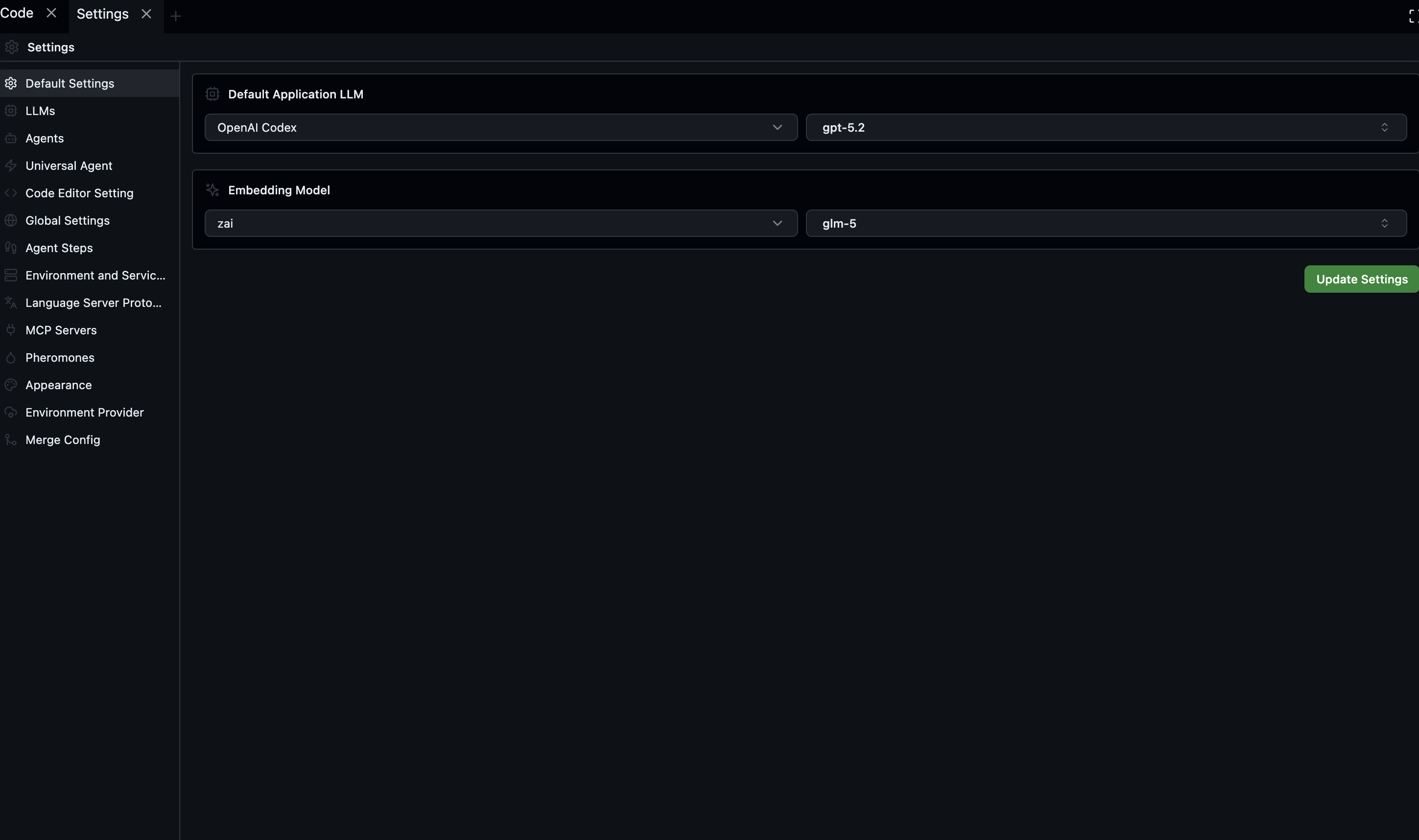
The Default Settings section lets you choose which LLM and embedding model Codebolt uses across the application by default.
Default Application LLM
Select the provider and model that agents use when no agent-specific override is set.
- Choose a Provider from the dropdown — only providers with a valid API key appear here.
- Click the Model field to open the searchable model picker and select a model.
- Click Update Settings to save.
Models are tagged Chat (for conversational/instruction models) or UC (Unified Capability).
Embedding Model
Select the provider and model used for vector embeddings (memory ingestion, knowledge retrieval, etc.).
- Choose a Provider — includes cloud providers and a built-in Local option.
- Select a Model. Local models show a Download button with size and progress indicator. A Ready badge appears once a model is downloaded; Available means it can be downloaded.
- Click Update Settings to save.
LLM Providers
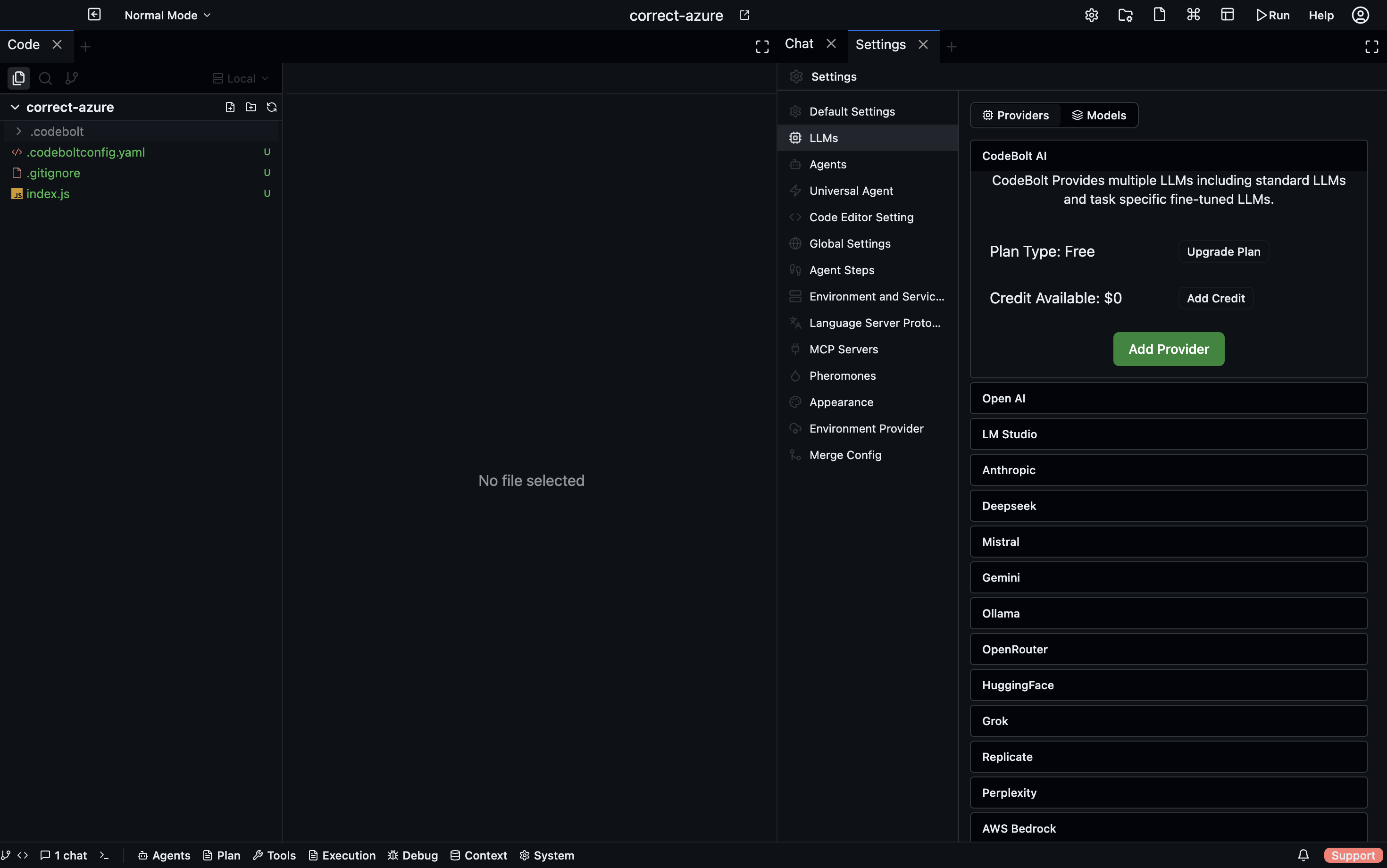
The LLMs section is where you add API keys and browse the models available from each provider.
Providers tab
All supported providers are listed in an accordion. Expand a provider to enter its credentials. A checkmark appears next to providers that already have a key configured.
| Provider | Notes |
|---|---|
| CodeBolt AI | Built-in; no key required |
| OpenAI | API key |
| Anthropic | API key |
| Gemini | API key |
| Groq | API key |
| Mistral | API key |
| DeepSeek | API key |
| AWS Bedrock | Access key + secret + region |
| Cloudflare AI | Account ID + API token |
| HuggingFace | API token |
| Ollama | Local URL (default http://localhost:11434) |
| LM Studio | Local URL |
| OpenRouter | API key |
| Perplexity | API key |
| Replicate | API key |
| Local | No key — uses locally downloaded models |
| Plugin providers | OAuth login/logout buttons |
After adding or updating a key, Codebolt validates it immediately and shows a toast notification.
Models tab
Use the Provider filter to see models from a specific provider, or select All Models for the full list. Each row shows the provider name and model ID. This tab is read-only — use the Default Settings or Agent Settings sections to assign models.